


 Flare
Flare
 PHP
PHP
 JavaScript
 Protocol
Quick start
By the end of this guide, the Flare client is running in your React app: it reports errors with a React component stack, shows your real source code in stack traces instead of minified code, and traces your page loads, navigations, and component mounts.
Looking for the V1 docs of the JavaScript SDK? You can find them here.
Install and start the client
You need a Flare account and a project key, which you can find on your project's settings page. Flare's React integration uses two packages: @flareapp/js, the core client that catches errors and sends them to Flare, and @flareapp/react, which adds the error boundary, the error handler, router tracing, and component profiling on top. React 16, 17, 18, and 19 are all supported.
The interactive guide below is the fastest way to get started. It fills in your real project key for you when you are logged in, and gives you copy-paste commands to install the packages and start the client. Or you can let an AI agent do all the work for you by using the install prompt.
This guide covers every supported setup. Follow only the steps that match your project: conditional instructions start with a bold "If ..." line describing when they apply. Steps without such a line always apply. Install commands use
npm install. Swap that prefix for the project's own package manager:yarn add,pnpm add, orbun add. ReplacePROJECT PUBLIC KEYwith the project's public key. You can find it in the project settings on https://flareapp.io.
Step 1: Install the package using NPM, Yarn, pnpm, or Bun
If you don't upload sourcemaps to Flare:
npm install @flareapp/js @flareapp/react
If you use Vite and upload sourcemaps to Flare:
npm install @flareapp/js @flareapp/react @flareapp/vite
If you use Webpack and upload sourcemaps to Flare:
npm install @flareapp/js @flareapp/react @flareapp/webpack
If you use Next.js and upload sourcemaps to Flare:
npm install @flareapp/js @flareapp/react @flareapp/nextjs
Step 2: Register Flare & configure
Wrap your app with the Flare error boundary in src/App.js:
If you upload sourcemaps to Flare:
In src/App.js:
import { createRoot } from 'react-dom/client';
import { flare } from "@flareapp/js";
import { FlareErrorBoundary } from '@flareapp/react';

// Only enable Flare in production, we don't want to waste your quota while you're developing:
if (process.env.NODE_ENV === 'production') {
    flare.light();
}

createRoot(document.getElementById('app')).render(
    <FlareErrorBoundary>
        <Root />
    </FlareErrorBoundary>
);
If you don't upload sourcemaps to Flare:
In src/App.js:
import { createRoot } from 'react-dom/client';
import { flare } from "@flareapp/js";
import { FlareErrorBoundary } from '@flareapp/react';

// Only enable Flare in production, we don't want to waste your quota while you're developing:
if (process.env.NODE_ENV === 'production') {
    flare.light('PROJECT PUBLIC KEY');
}

createRoot(document.getElementById('app')).render(
    <FlareErrorBoundary>
        <Root />
    </FlareErrorBoundary>
);
If you enable tracing:
Tracing shows you where time goes during a page load, a navigation, and the requests your page makes. Add this inside the same production check, after flare.light(). Read more in how tracing works and sampling.
In src/App.js:
flare.configure({
    enableTracing: true,
    // Sends 10% of traces. Raise it for more detail, lower it to save quota.
    tracesSampleRate: 0.1,
});
If you use Vite and upload sourcemaps to Flare:
Configure Vite to upload sourcemaps to Flare:
In vite.config.js:
import { defineConfig } from 'vite';
import flareSourcemaps from '@flareapp/vite';

export default defineConfig({
    plugins: [
        flareSourcemaps({
            apiKey: 'PROJECT PUBLIC KEY'
        }),
    ],
});
If you use Webpack and upload sourcemaps to Flare:
Configure Webpack to upload sourcemaps to Flare:
In webpack.config.js:
const { FlareWebpackPlugin } = require("@flareapp/webpack");

module.exports = {
    // ...
    devtool: "source-map",
    plugins: [ new FlareWebpackPlugin({ apiKey: "PROJECT PUBLIC KEY" }) ],
};
If you use Next.js and upload sourcemaps to Flare:
Wrap your Next.js config with withFlareSourcemaps in next.config.mjs:
In next.config.mjs:
import { withFlareSourcemaps } from '@flareapp/nextjs';

export default withFlareSourcemaps({
    // your normal Next.js config
}, {
    apiKey: 'PROJECT PUBLIC KEY',
});
Step 3: Connect your project key
If you upload sourcemaps to Flare:
When you install Flare's sourcemap build plugin, the build plugin injects your public key so flare.light() can run without an explicit key. Make sure you add the domains of your application in the project settings on Flare.
If you don't upload sourcemaps to Flare:
Pass your public key directly to flare.light('PROJECT PUBLIC KEY') and make sure you add the domains of your application in the project settings on Flare.
Step 4: Verify your setup
Add this code temporarily to verify everything is working:
In app.js:
flare.test();
If you use Vite and upload sourcemaps to Flare:
Run your Vite build command. You should see the following lines in the output:
@flareapp/vite: Uploading xx sourcemap(s) to Flare.
@flareapp/vite: Successfully uploaded all sourcemaps to Flare.
If you use Next.js and upload sourcemaps to Flare:
Run next build. You should see the following lines in the output:
@flareapp/webpack: Uploading 4 sourcemap(s) to Flare.
@flareapp/webpack: Successfully uploaded all sourcemaps to Flare.
Prefer to install and configure the client by hand, or not logged in? Install the packages:
npm install @flareapp/js @flareapp/react
yarn add @flareapp/js @flareapp/react
pnpm add @flareapp/js @flareapp/react
bun add @flareapp/js @flareapp/react
Then add this near the top of your application's entry file, before any other code runs, so the client can catch errors as early as possible:
import { flare } from '@flareapp/js';

if (process.env.NODE_ENV === 'production') {
    flare.light('YOUR PROJECT KEY');
}
The guard keeps the client off during local development, so you don't use up your quota while you work.
flare.light() switches on the client's automatic error listeners. From that point on, unhandled errors and unhandled promise rejections are caught and sent to Flare on their own, without any extra code from you.
Catch React errors
flare.light() catches errors outside of React's rendering, but a rendering error, for example a component that throws while it renders, needs its own catch. Wrap your component tree in FlareErrorBoundary:
import { FlareErrorBoundary } from '@flareapp/react';

function App() {
    return (
        <FlareErrorBoundary>
            <Root />
        </FlareErrorBoundary>
    );
}
This catches errors during rendering, in lifecycle methods, and in constructors of the component tree below it, and reports them to Flare with a structured component stack trace. Read more in error boundary, including how to show a fallback UI and reset the boundary on navigation.
If you're on React 19, you can also catch errors through createRoot's error callbacks instead of, or alongside, the boundary. See error handler.
Check that errors arrive
Add a component that throws while it renders, so the FlareErrorBoundary you just added actually catches it:
function BrokenComponent() {
    throw new Error('My first Flare error');
}
Render <BrokenComponent /> somewhere inside your FlareErrorBoundary, then open your project in Flare. The error shows up within a few seconds, with its message, a stack trace, the component stack, and the browser it came from. Remove the test component once you have confirmed it arrived.
See your real source code
If you bundle your code for production, the stack trace above points at minified, bundled output instead of the file and line you actually wrote. Fix that by uploading a sourcemap after every build, using the Vite or Webpack plugin. The React integration uses the same plugins as the core JavaScript client. Follow see your real source code in the JavaScript quick start for the install and config steps, then come back here.
Turn on tracing
You've now got error reporting working. The remaining steps add tracing and component profiling. You can stop here and come back to them later; nothing below is required to get errors into Flare.
Tracing shows you where time goes during a page load, a client side navigation, and the requests your page makes. Turn it on with flare.configure():
import { flare } from '@flareapp/js';

flare.configure({
    enableTracing: true,
    tracesSampleRate: 1,
});
enableTracing defaults to false, so tracing is off until you set it. tracesSampleRate controls what fraction of traces gets sent, from 0 to 1, and defaults to 1, meaning every trace is sent. Lower it once you have real traffic, so you don't ship a trace for every single page load.
Once tracing is on, the browser client automatically traces page loads, client side navigations, and the fetch or XMLHttpRequest calls your page makes. Without a router integration, a navigation span is named by the raw URL it navigated to, and the client does not time component mounts. The next two steps add both.
Read more in how tracing works and what gets traced.
Trace navigations
You can stop here and come back later; nothing below is required to get errors into Flare.
Add your router's integration so a navigation span contains the matched route pattern next to the raw URL. Pick the router you use:
import { createRouter, RouterProvider } from '@tanstack/react-router';
import { traceTanStackRouter } from '@flareapp/react/tanstack-router';
import { routeTree } from './routeTree.gen';

const router = createRouter({ routeTree });

traceTanStackRouter(router);

export function App() {
    return <RouterProvider router={router} />;
}
import { createBrowserRouter, RouterProvider } from 'react-router';
import { traceReactRouter } from '@flareapp/react/react-router';
import Home from './pages/Home';
import Product from './pages/Product';

const router = createBrowserRouter([
    { path: '/', Component: Home },
    { path: '/products/:id', Component: Product },
]);

traceReactRouter(router);

export function App() {
    return <RouterProvider router={router} />;
}
Both traceTanStackRouter and traceReactRouter are subpath imports. They are not exported from @flareapp/react itself, so importing them from the root package will not work.
traceReactRouter needs a React Router v7 or v8 data router, one created with createBrowserRouter, createHashRouter, or createMemoryRouter, as in the example above. A declarative <BrowserRouter> never gives you a router object to pass in, so there's nothing to call traceReactRouter with.
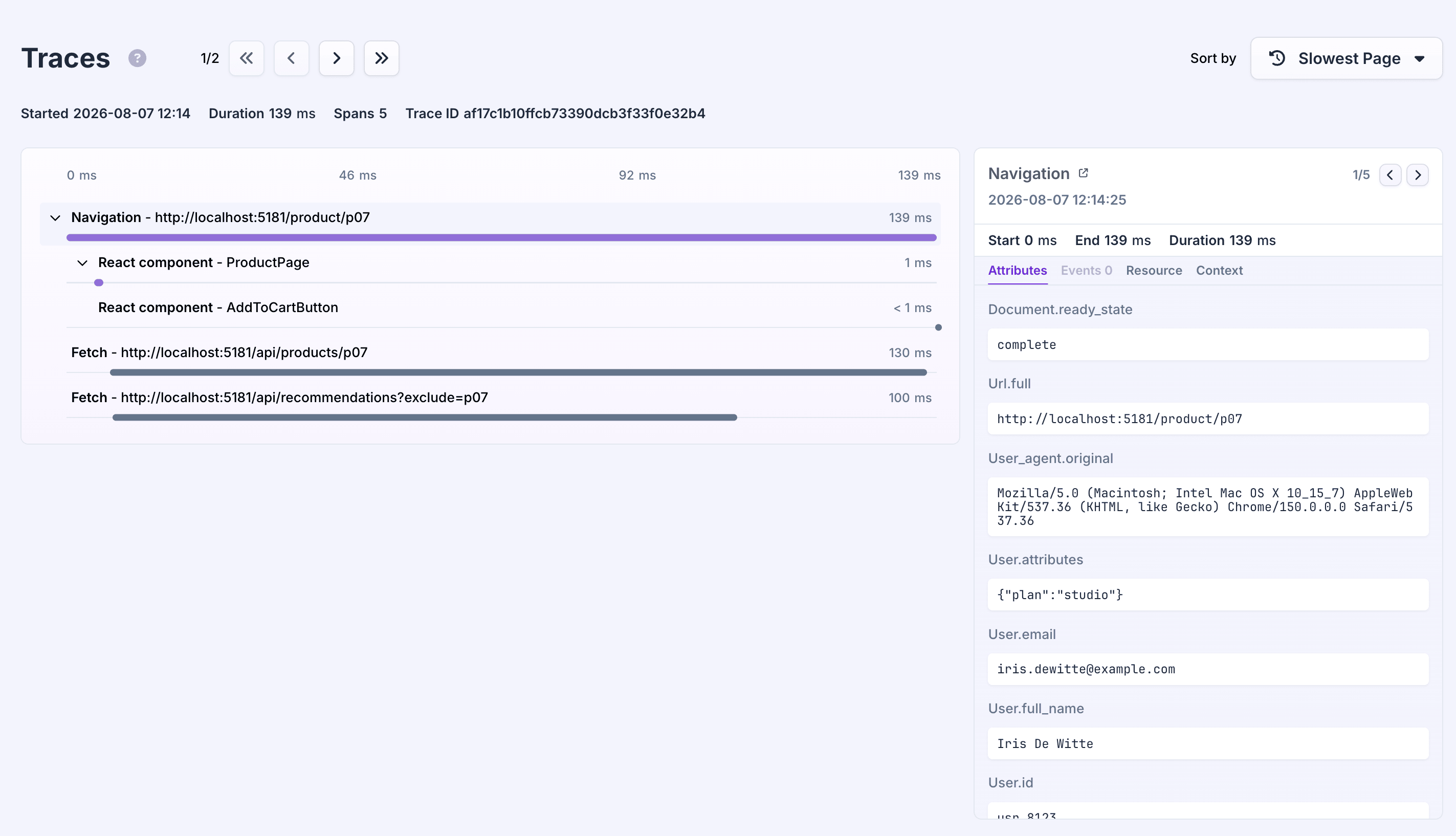
Read more in tracing introduction for React.
Profile components
You can stop here and come back later; nothing below is required to get errors into Flare.
Wrap a component in FlareProfiler to time how long it takes to mount, as a span nested under the current page load or navigation:
import { FlareProfiler } from '@flareapp/react/profiler';

function ProductPage() {
    return (
        <FlareProfiler name="ProductPage">
            <Product />
        </FlareProfiler>
    );
}
This only records mounts, not re-renders, and it needs enableTracing on, which you already set in the tracing step above.
Read more in profiling introduction for React.
Common problems
See common problems in the JavaScript quick start for problems that apply to every JavaScript app, such as the client never being started or a wrong project key. Below is one that is specific to React.
Errors are reported twice in development. In development, React's StrictMode intentionally runs some code twice, including the render pass that would trigger FlareErrorBoundary, so you'll see two reports for the same error. This is expected and does not happen in a production build (read more about StrictMode).
Next steps
- Error boundary and error handler: fallback UI, resetting on navigation, and React 19's
createRootcallbacks. - Reporting errors: report caught errors and send log messages by hand.
- Client hooks: change or drop a report before it's sent.
- Sourcemaps: sourcemaps for Vite, Webpack, Next.js, Laravel Mix, and manual uploads.
- Adding custom context and identifying users.
- Tracing introduction for React, plus sampling and manual spans.
- Profiling introduction for React.
- API reference and configuration reference.