Hooking an AI tool up to Flare's MCP server used to mean creating an API token and pasting it into a config file. That token had full admin access, everywhere. Not very secure, and a lot of extra steps. We've solved both of these problems: MCP clients now sign in to Flare with OAuth from your browser, and you decide exactly how much access each one gets.
Add Flare to your agent in one command
In Claude Code, for example:
claude mcp add --transport http flare https://flareapp.io/mcp
The first time the client connects, it registers itself with Flare and opens your browser to approve the connection. That's the whole setup. The same flow works in Claude Desktop, Codex, Cursor, OpenCode, and any other MCP client that supports OAuth login.
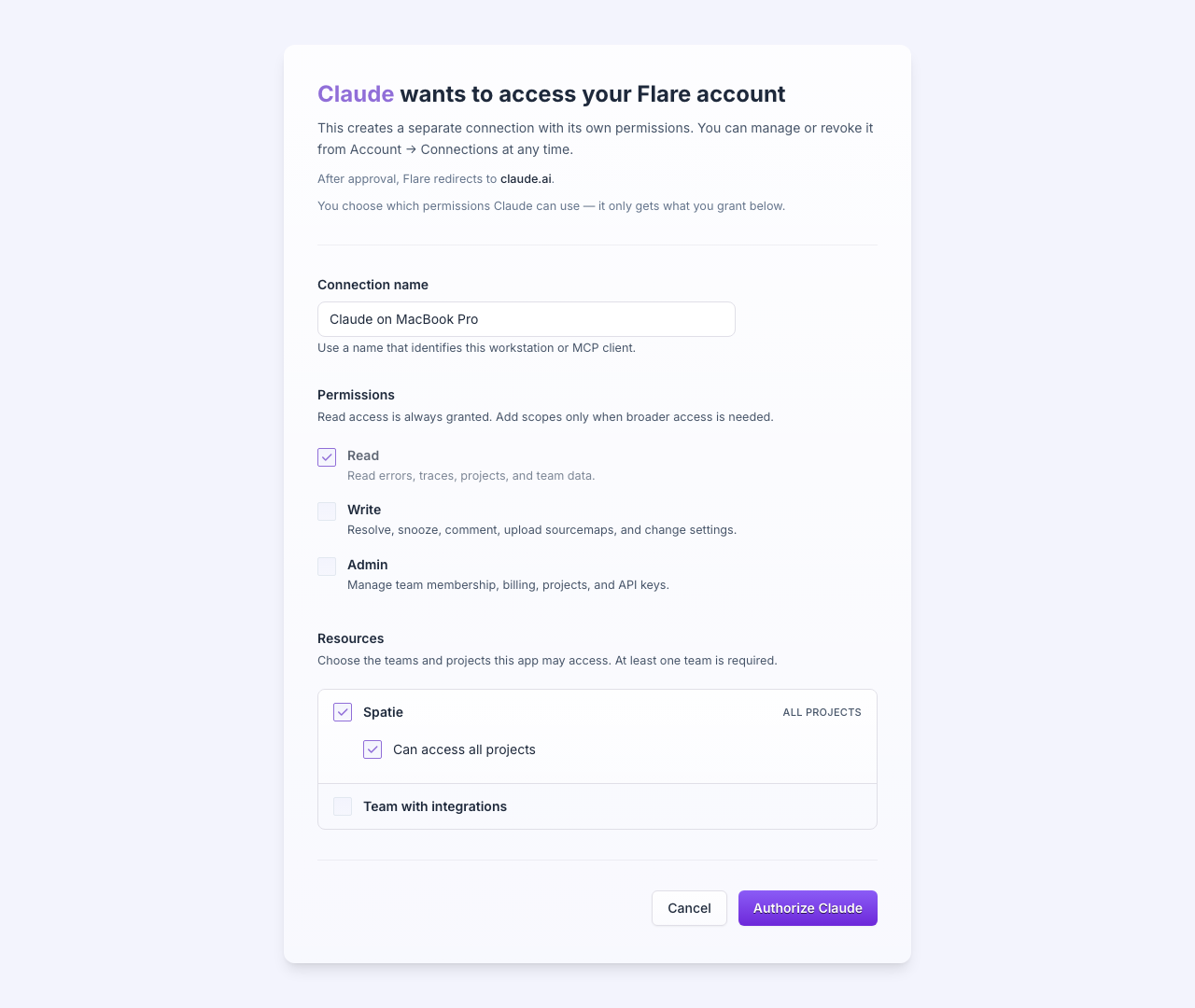
This flow is my favorite part of the update. Nothing kills productivity like stopping halfway through a task to create an API token, pick permissions, and paste a key into a config file. Now it's one approve button and I'm back to work.
Let your AI investigate safely in read-only mode
On the consent screen you choose between read, write, and admin access per connection, and you scope it to specific teams or even individual projects. MCP connections start out with read-only access on purpose: an agent that's investigating doesn't need more, and you can always grant more later.
Want Claude to investigate errors in one project but never resolve anything or touch any settings? Grant it read access to that project and nothing else. Flare enforces it on every request so a rogue agent can't quietly resolve your errors or change your notification settings. Seeing how often OpenAI and Anthropic have AI agents hack their way out of their sandboxes, this seems like a good idea to have.
The CLI signs in the same way
Run flare login and your browser opens the same consent screen. You give the connection a name (Flare suggests your computer's name), pick its permissions, and you're logged in. You never see a token, let alone copy one.
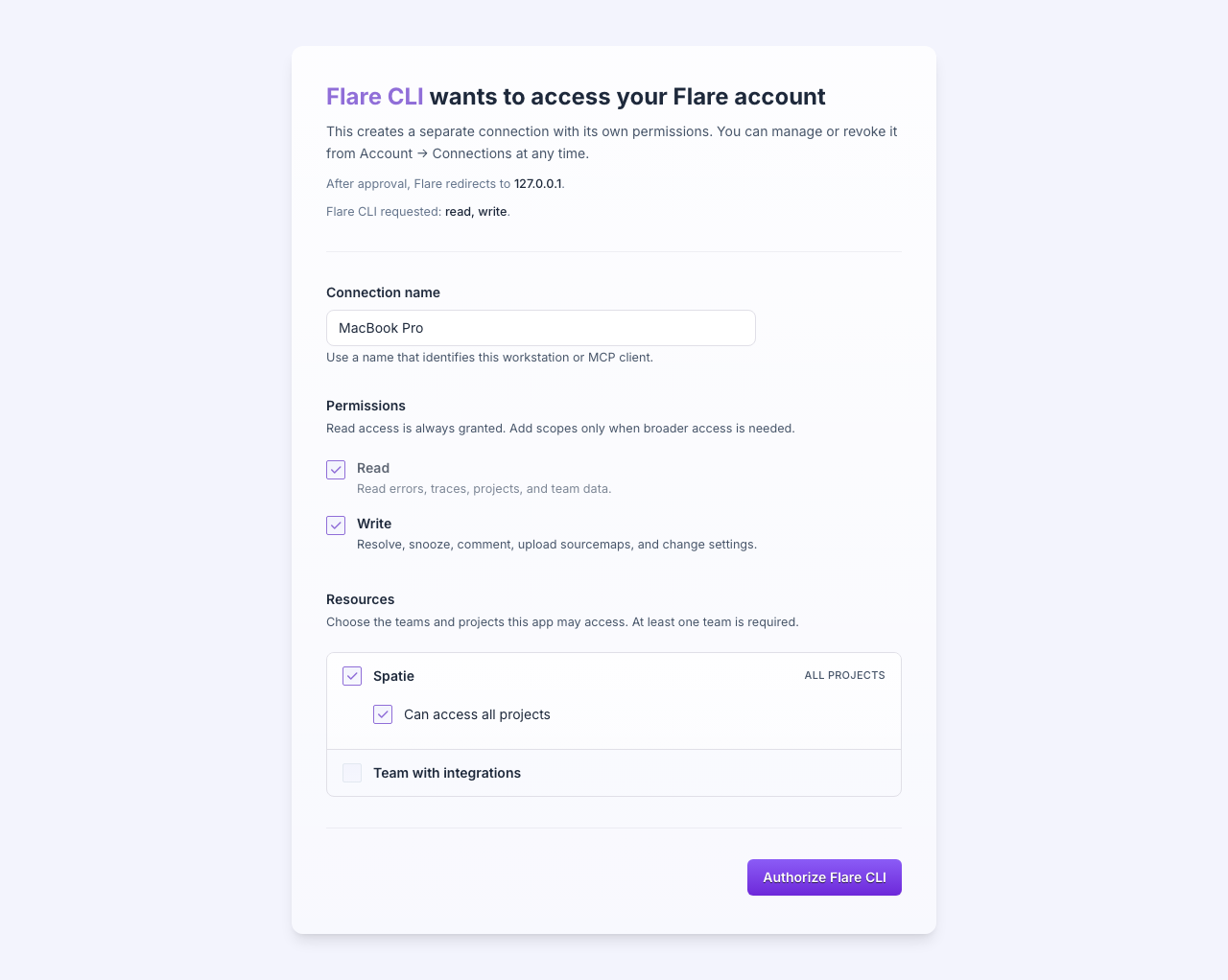
On a server without a browser, flare login --device shows a short code instead. Enter it on flareapp.io from any machine and the CLI picks it up from there.
One page for all your connections
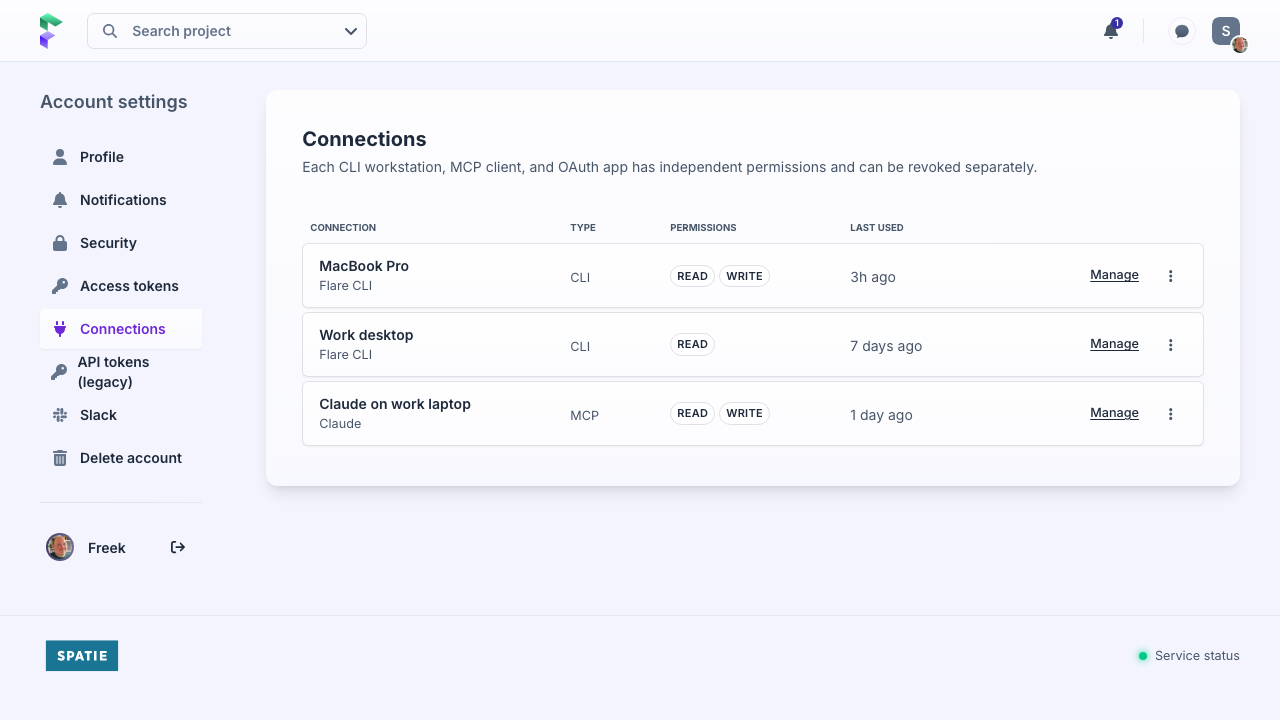
Every MCP client and CLI login shows up under Account → Connections, where you can see its permissions and when it was last used. From there you can revoke a single connection or edit its access. Changes to team and project grants apply immediately, without the tool having to log in again.
Better API authentication too
The same permission model now backs the REST API. Each personal access token can have read, write, or admin access, can be limited to specific teams or projects, and always expires after a year.
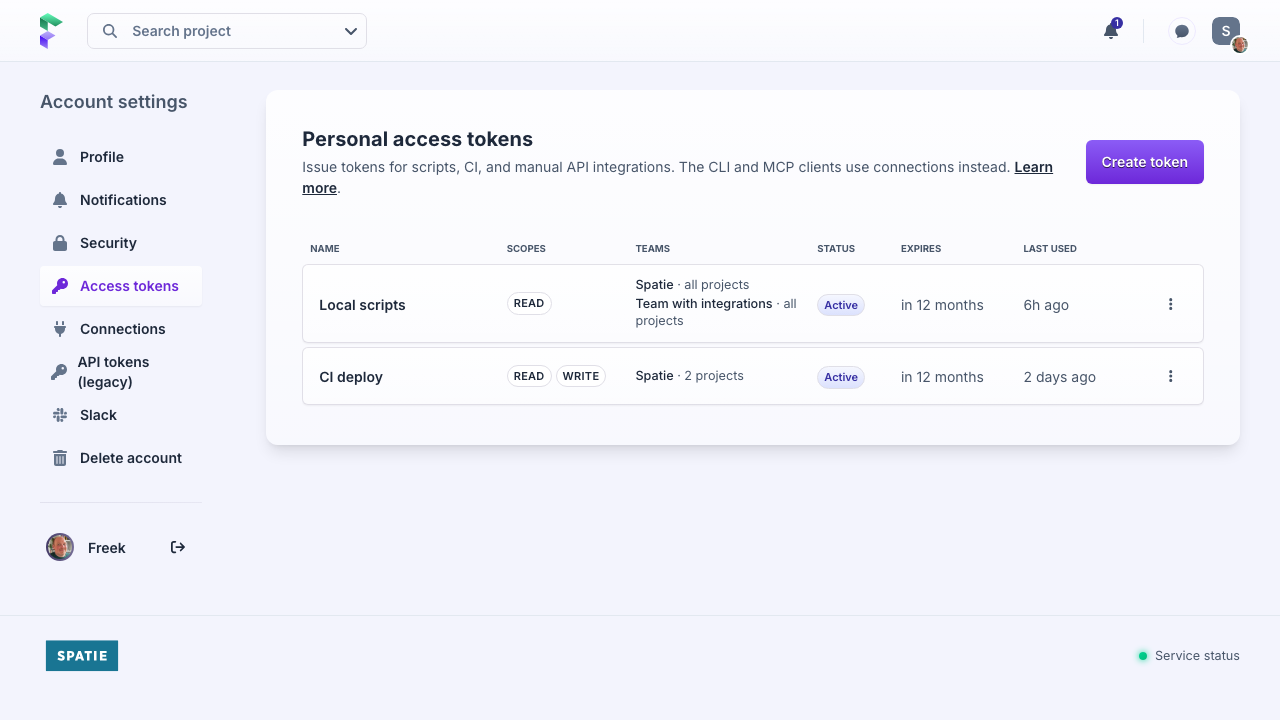
If you still have old API tokens, they'll keep working for now, but you can't create new ones. The legacy page will stick around until you've revoked your last old token.
Behind the scenes: Laravel Passport
All of this is built on Laravel Passport, one of our favorite packages. Passport handles the OAuth heavy lifting: authorization code with PKCE for the browser flow, the device grant for headless logins, and refresh token rotation with replay detection. We added Flare's permission model and resource-bound tokens for the API and MCP server on top. If you're adding OAuth to a Laravel app, start there.
Try it
Connect your MCP client to https://flareapp.io/mcp, or install the CLI with composer global require spatie/flare-cli and run flare login. The details are in the CLI docs and the API docs.
Continue reading
Introducing: Dark mode for Flare
We heard you, so here it is: a Dark Mode for Flare!

Dries
Automatic breadcrumbs recording and GDPR consent
The latest JavaScript client can record breadcrumbs for you: the clicks, navigations, and HTTP requests a user made before an error, so you can retrace their steps. We also added a consent hook, so nothing is sent to Flare until a visitor accepts your cookie or GDPR banner.
Dries
Subscribe to Backtrace, our quarterly Flare newsletter
No spam, just news & product updates