


 Flare
Flare
 PHP
PHP
 JavaScript
 Protocol
Using the CLI
The Flare CLI lets you manage your errors, projects, and performance monitoring data directly from the terminal. List errors, resolve or snooze them, browse monitoring aggregations and traces, create projects, and more — without opening the Flare dashboard.
See what you can do with Flare and AI.
Installation
Install the CLI globally via Composer:
composer global require spatie/flare-cli
Make sure Composer's global bin directory is in your PATH. You can find the path with:
composer global config bin-dir --absolute
Verify the installation:
flare --version
Authentication
There are three ways to log the CLI in, all driven by the flare login command. Browser OAuth is the recommended path for laptops, device code covers headless or remote machines, and pasting a personal access token is still supported for CI or any environment where opening a browser isn't practical. Credentials are stored locally at ~/.flare/config.json.
Every OAuth login creates a separate connection for that workstation. Logging in on another computer does not replace or sign out an existing connection. You can rename a connection, change its permissions, or revoke it independently from Account → Connections.
Browser OAuth (recommended)
flare login
The CLI starts a local callback server, opens your browser to a Flare consent screen, and waits. Pick which scopes and which teams or projects this CLI may use, then approve.
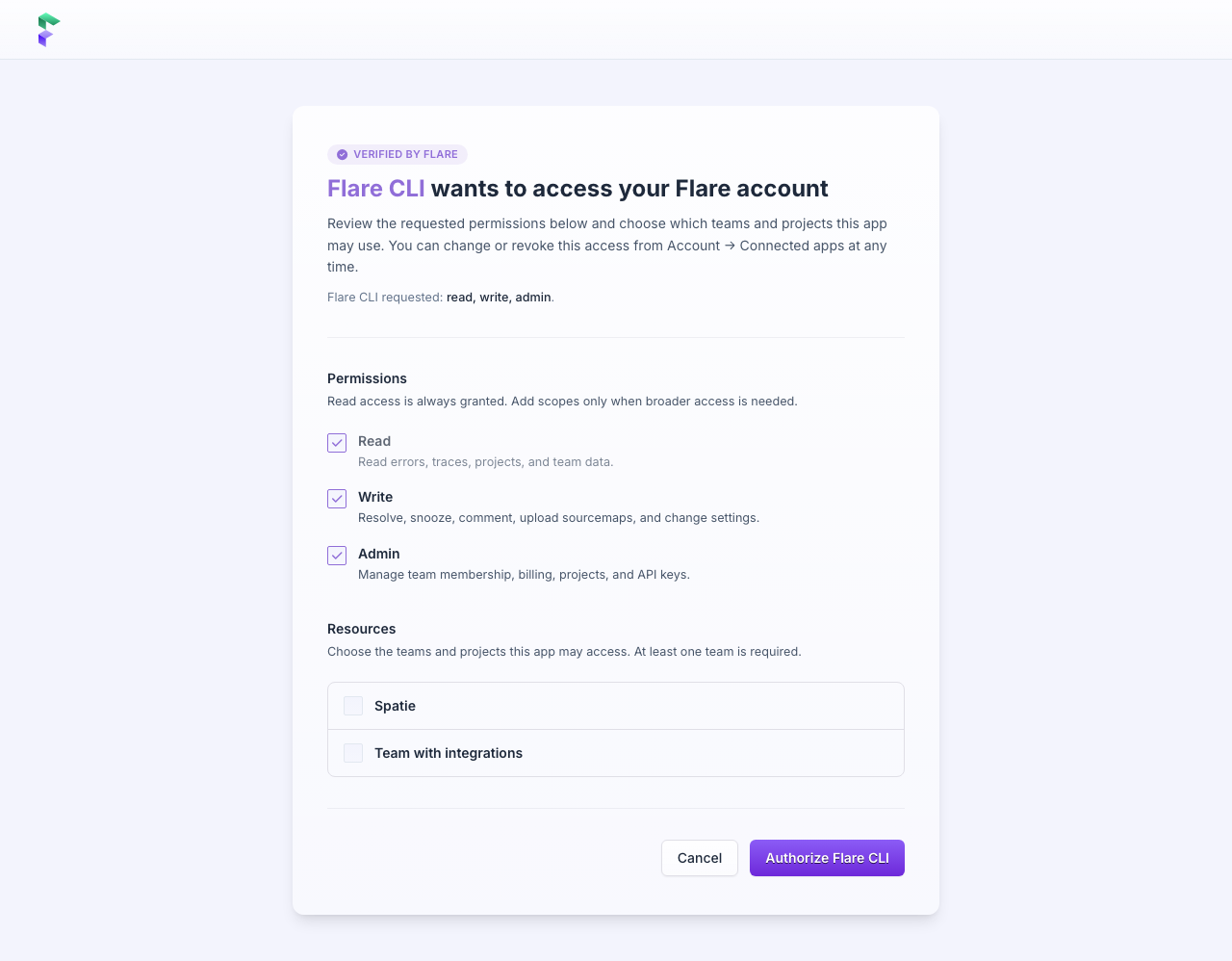
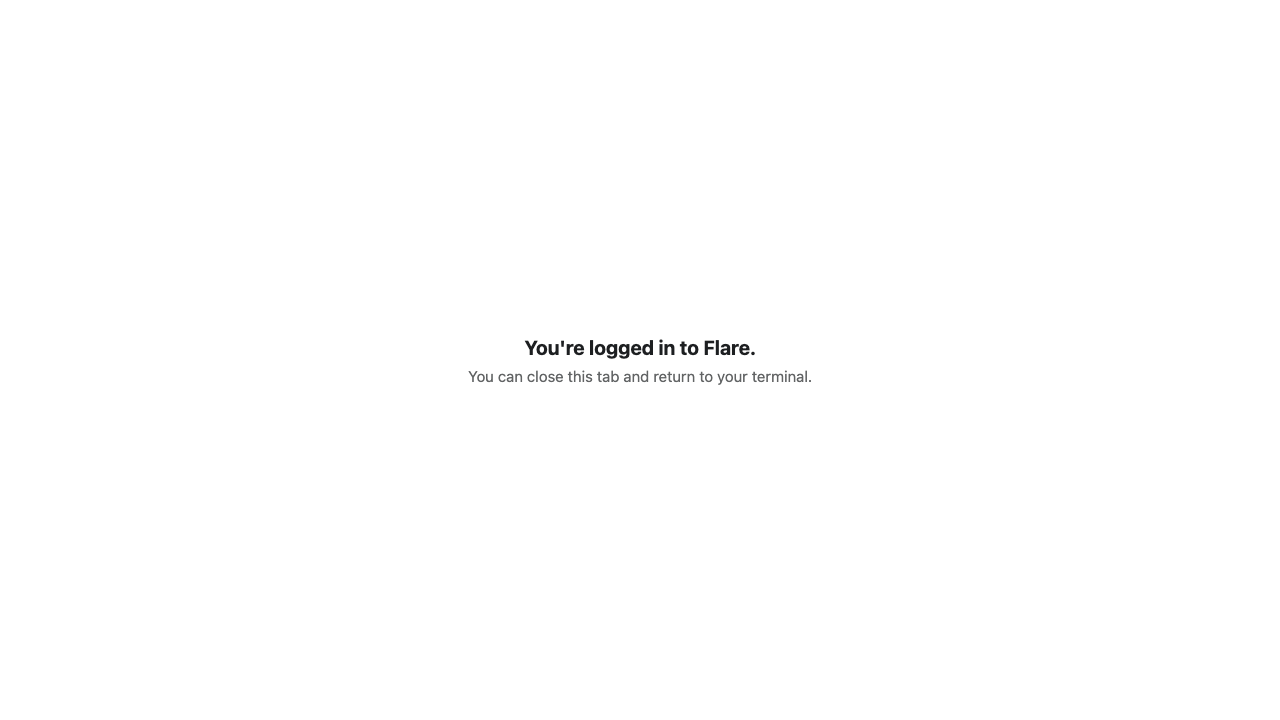
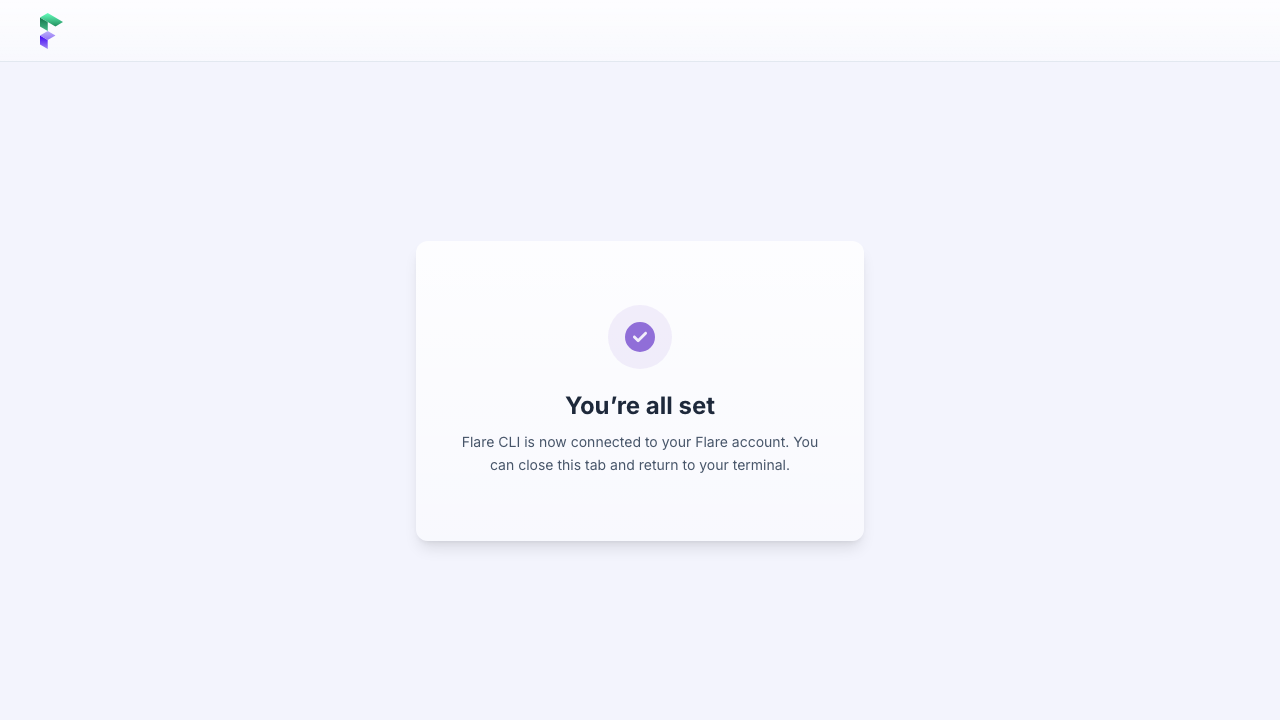
When you approve, the browser is redirected back to the local callback server and shows a short confirmation. The CLI exchanges the authorization code for an access token (with refresh token) and prints a success message in your terminal.
Device code (for SSH, headless servers, CI)
flare login --device
The CLI prints a user code and a URL. Open the URL on any browser, sign in to Flare, and approve.
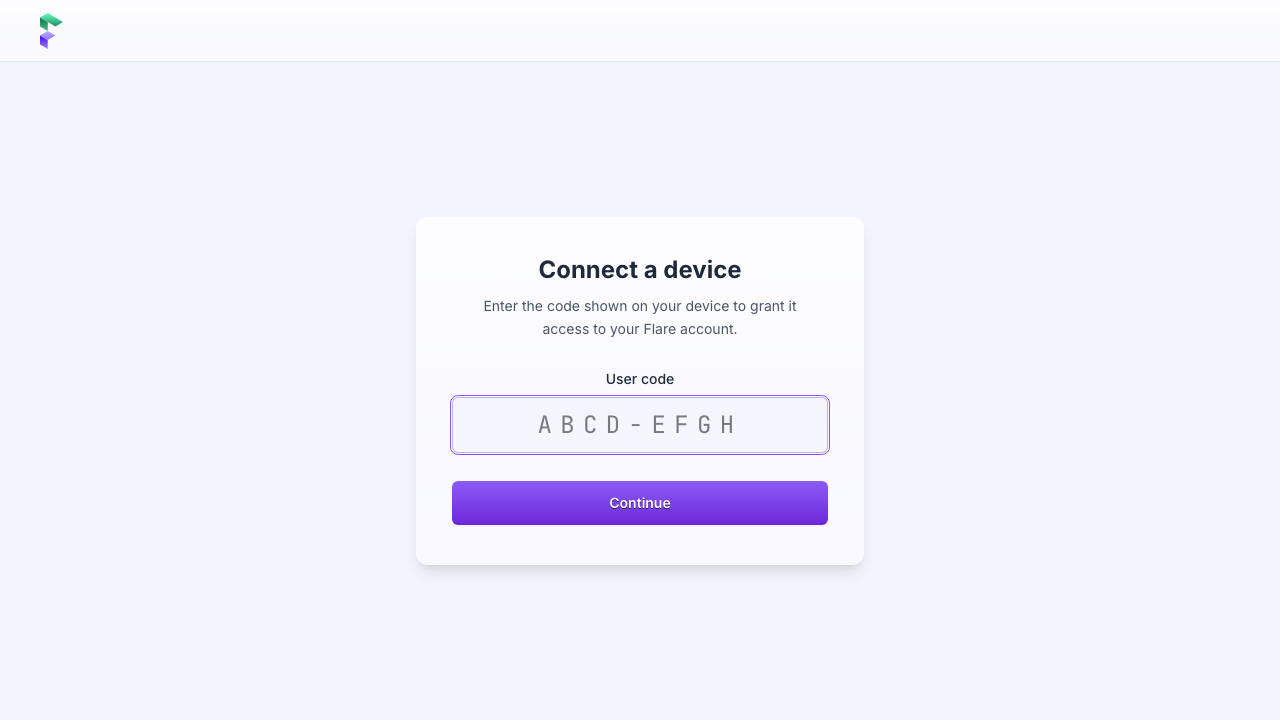
Following the URL with the user_code already in the query string skips the form and lands directly on the consent screen.
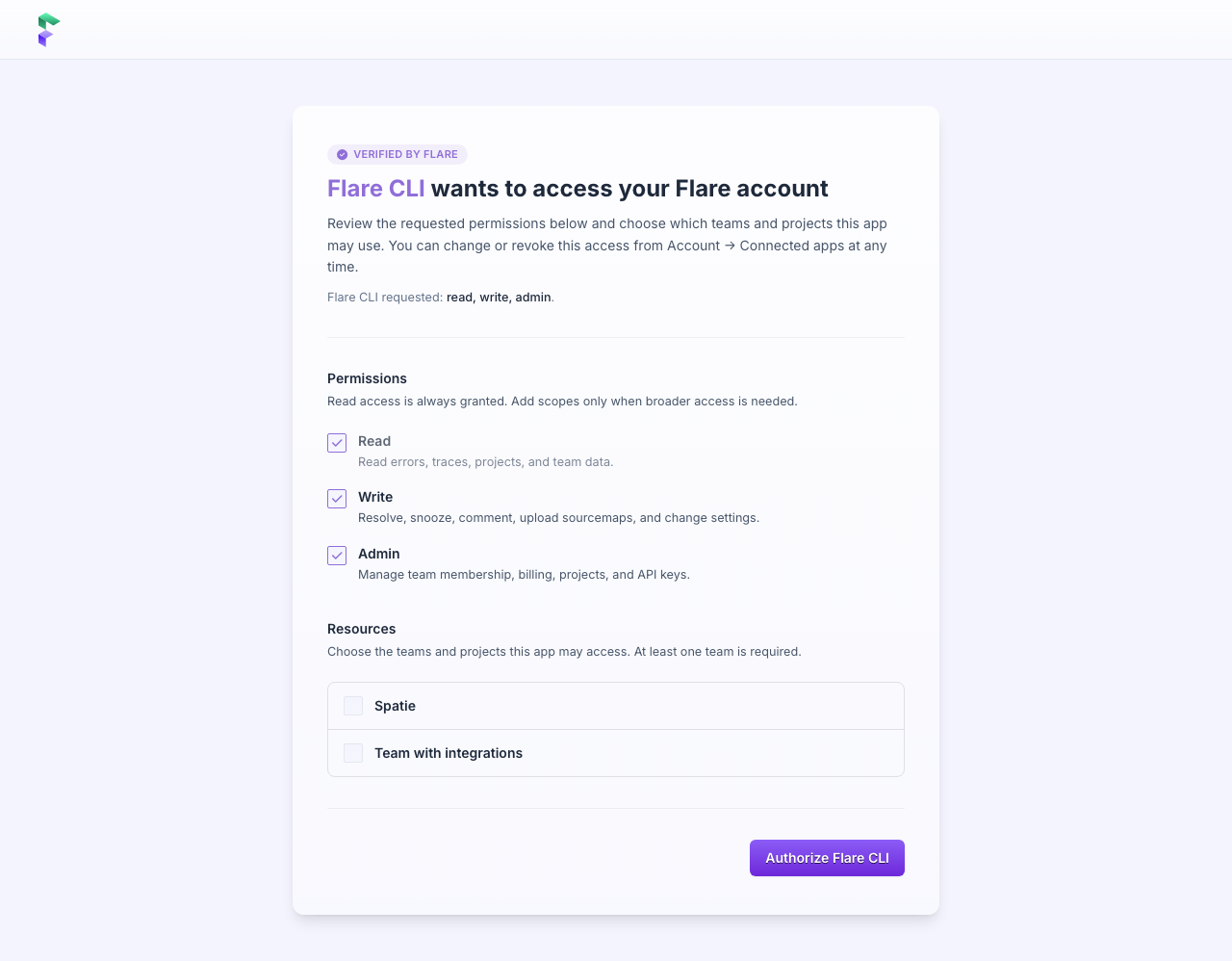
After approving, the browser confirms the connection. The CLI's polling loop picks up the approval within a couple of seconds and prints the same success message.
Personal access token (paste-a-token)
flare login --token
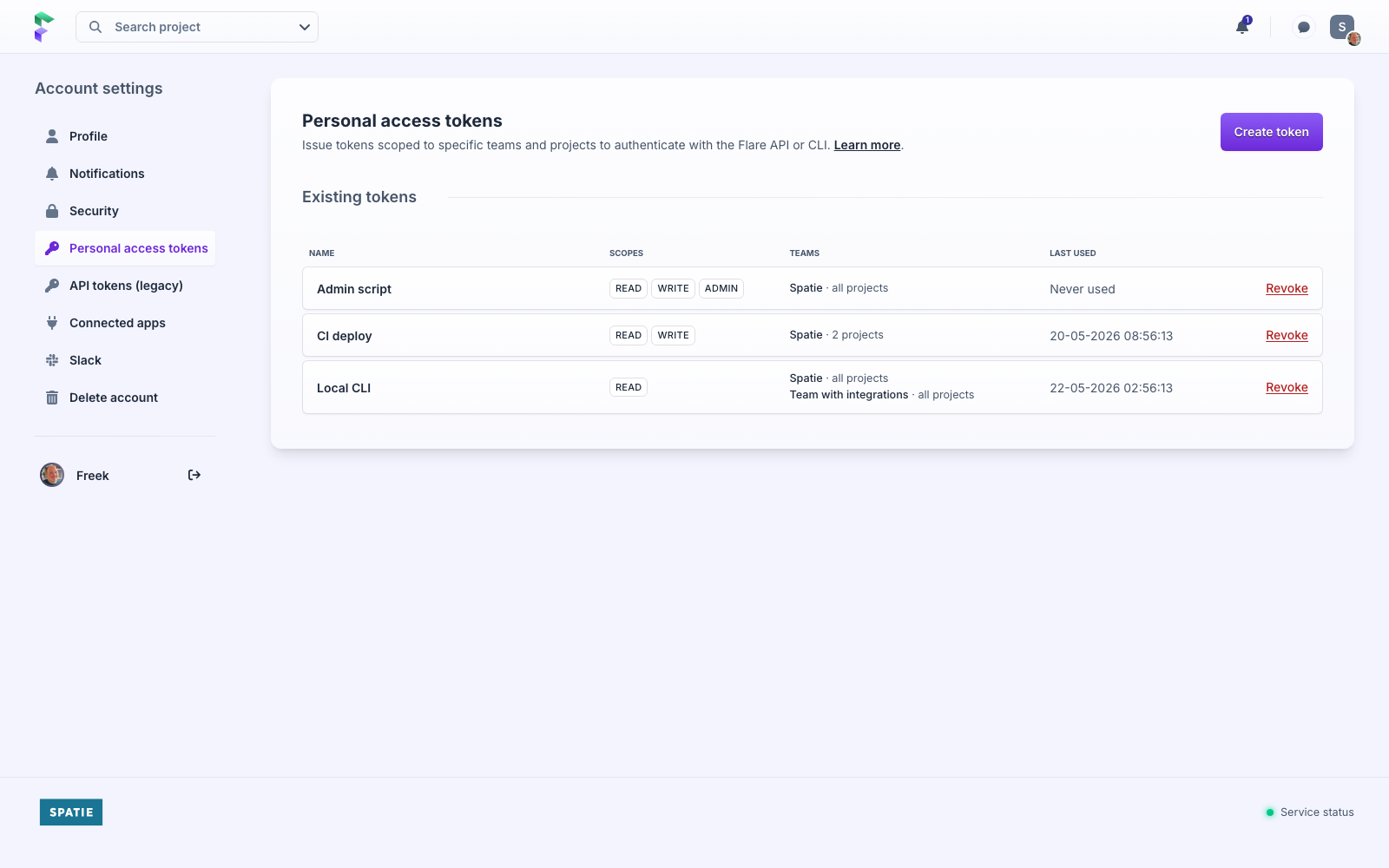
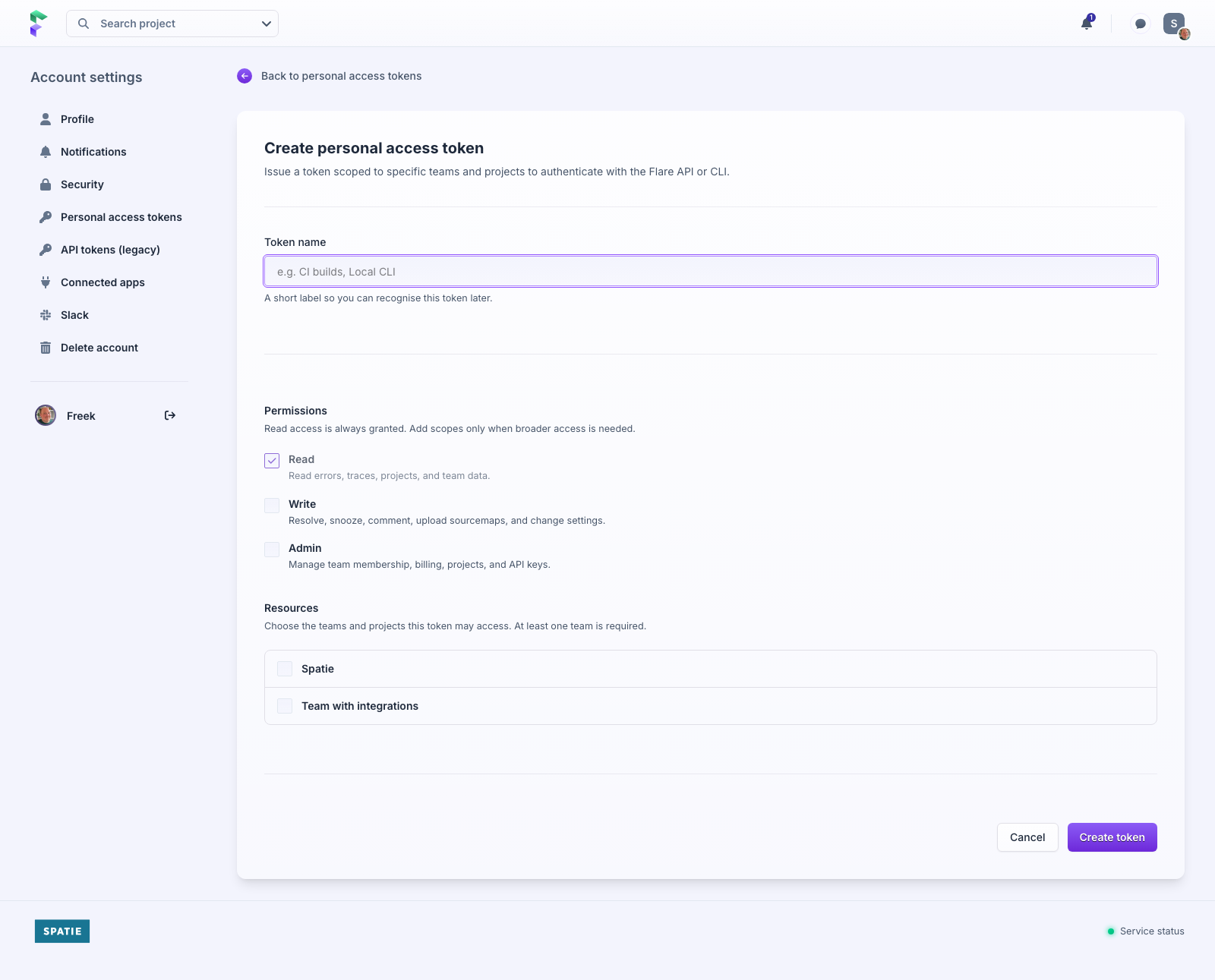
The CLI prompts you to paste a token. Create one in your account settings, scoped to the teams, projects, and permissions this CLI should have.
The create form lets you pick scopes (read, write, admin) and which teams or projects the token may access — the same picker as the OAuth consent screen above.
Legacy API tokens from /account/api-tokens also work as the token input here for backwards compatibility, but new integrations should use a personal access token. See the API authentication reference for the full scope table.
Checking your login and logging out
flare auth              # show the account the CLI is logged in as
flare logout            # remove the stored credentials
Available commands
Every Flare API endpoint has a corresponding CLI command. Run flare to see all commands, or flare <command> --help for details on a specific command.
Projects
list-projects— List all projects. Supports filtering by name or team.create-project— Create a new project with a name, team, stage, and technology.update-project: Change a project's name, group, stage, technology, or allowed domains. Only the fields you pass are changed.delete-project— Delete a project by ID.
flare create-project --field name="My App" --field team_id=1 --field stage=production --field technology=Laravel
flare update-project --project-id=123 --field group="Clients"
flare update-project --project-id=123 --field group=
flare update-project --project-id=123 --input '{"allowed_domains": ["example.com", "*.example.com"]}'
Errors
list-project-errors— List errors in a project. Supports filtering by status, exception class, file, stage, log level, and date ranges.get-project-error-count/get-project-error-occurrence-count— Get the number of unique errors or total occurrences in a date range.resolve-error/unresolve-error— Resolve or reopen an error.snooze-error/unsnooze-error— Snooze or unsnooze an error. You can snooze forever, until a date, or for a number of occurrences.
flare snooze-error --error-id=456 --field snooze_type=snooze_forever
Error occurrences
list-error-occurrences— List all occurrences of an error, including stack traces, context, and events.get-error-occurrence— Get a single occurrence with full details.
Teams
get-team— Get a team and its members.remove-team-user— Remove a user from a team.
Performance Monitoring
get-monitoring-summary— Get the monitoring dashboard summary for a project, including metrics and trends for routes, jobs, commands, and queries.list-monitoring-aggregations— List aggregations by type (routes,queries,jobs,commands,external-http,views,livewire-components). Supports filtering by p95, average, count, error rate, and free-text search.get-monitoring-time-series— Get time series data for graphing. Precision is auto-selected based on the interval.get-monitoring-aggregation— Get detailed metrics, trends, and relationship links for a single aggregation.list-aggregation-traces— List traces for an aggregation. Supports sorting byslowest,fastest,latest, oroldest.get-trace— Get the full span tree for a trace, including all span events, resources, and contexts.
flare get-monitoring-summary --project-id=123 --filter-interval=24h
flare list-monitoring-aggregations --project-id=123 --type=routes --filter-interval=7d --sort=-p95
flare list-aggregation-traces --type=routes --uuid=abc-123 --sort=slowest
User
get-authenticated-user— Get the currently authenticated user and their teams.
Filtering and sorting
List commands support filtering and sorting through command options. Filters use --filter- prefixed options, and sorting uses the --sort option. Prefix a sort field with - to sort in descending order.
flare list-project-errors --project-id=123 \
  --filter-status=open \
  --filter-exception-class=RuntimeException \
  --sort=-last_seen_at
All list commands support pagination with --page-number and --page-size (maximum 30 items per page).
flare list-project-errors --project-id=123 --page-number=2 --page-size=20
Output options
By default, the CLI displays results in a human-readable format. You can switch to structured output for scripting and automation:
--json— Output raw JSON.--yaml— Output YAML.
flare list-projects --json
flare list-projects --json | jq '.data[].name'
AI agent integration
The Flare CLI includes an agent skill that teaches AI coding agents how to use the CLI to triage errors, investigate occurrences, monitor performance, and manage projects on your behalf.
flare install-skill