Flare
Flare
 PHP
PHP
 JavaScript
 Protocol
- Error tracking
- Performance monitoring
Jira integration
If you use Jira to track issues in your app, you can connect Flare to Jira.
Our integration allows you to:
- Create a Jira issue directly on a Flare error.
- Associate a Jira issue with a Flare error by mentioning a Flare URL in the Jira issue.
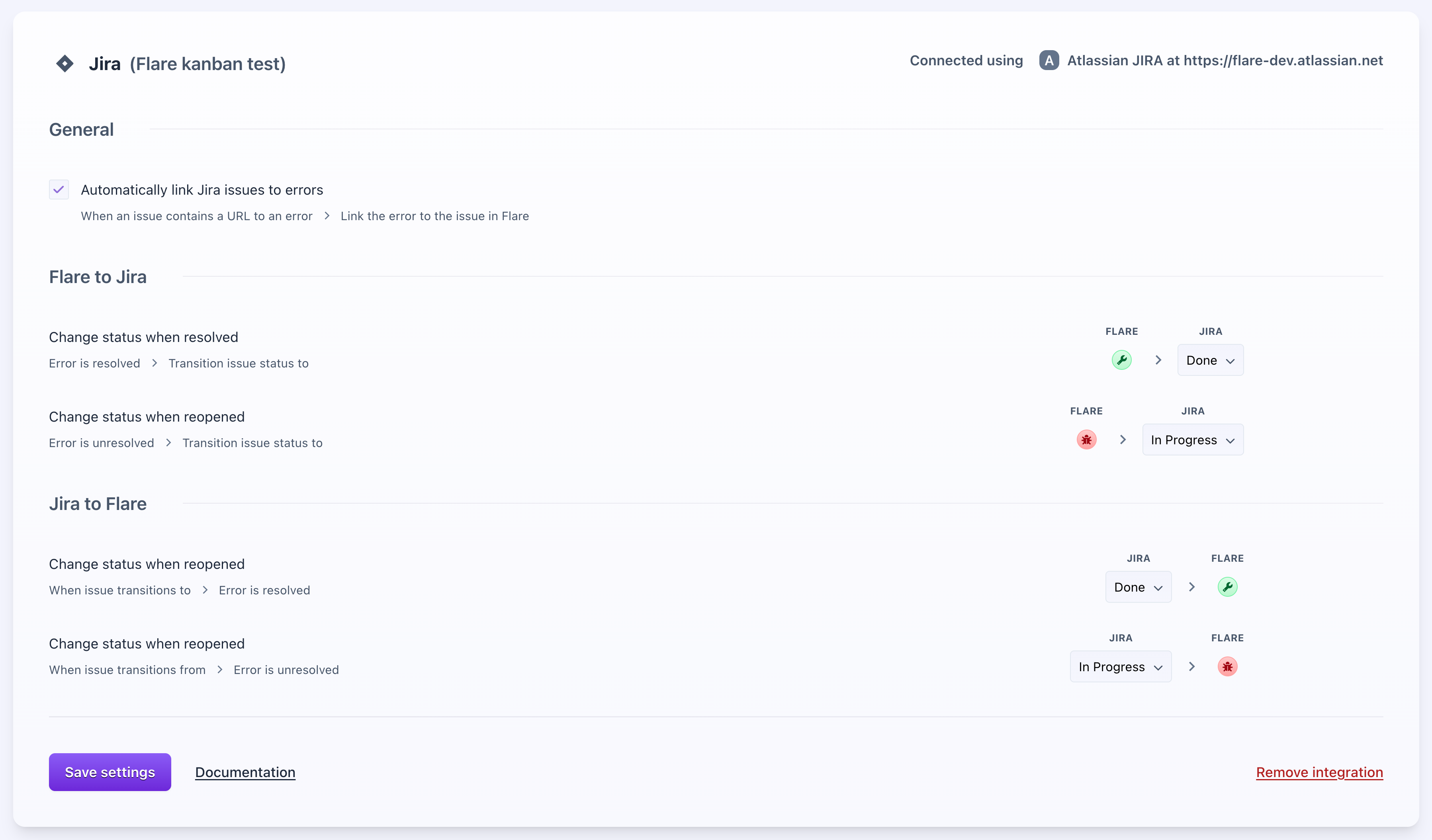
- Automatically resolve / unresolve an error on Flare when you transition the Jira issue status.
- Automatically transition a Jira issue status when you resolve / unresolve an error in Flare.
- See linked Flare errors in Jira
Getting started
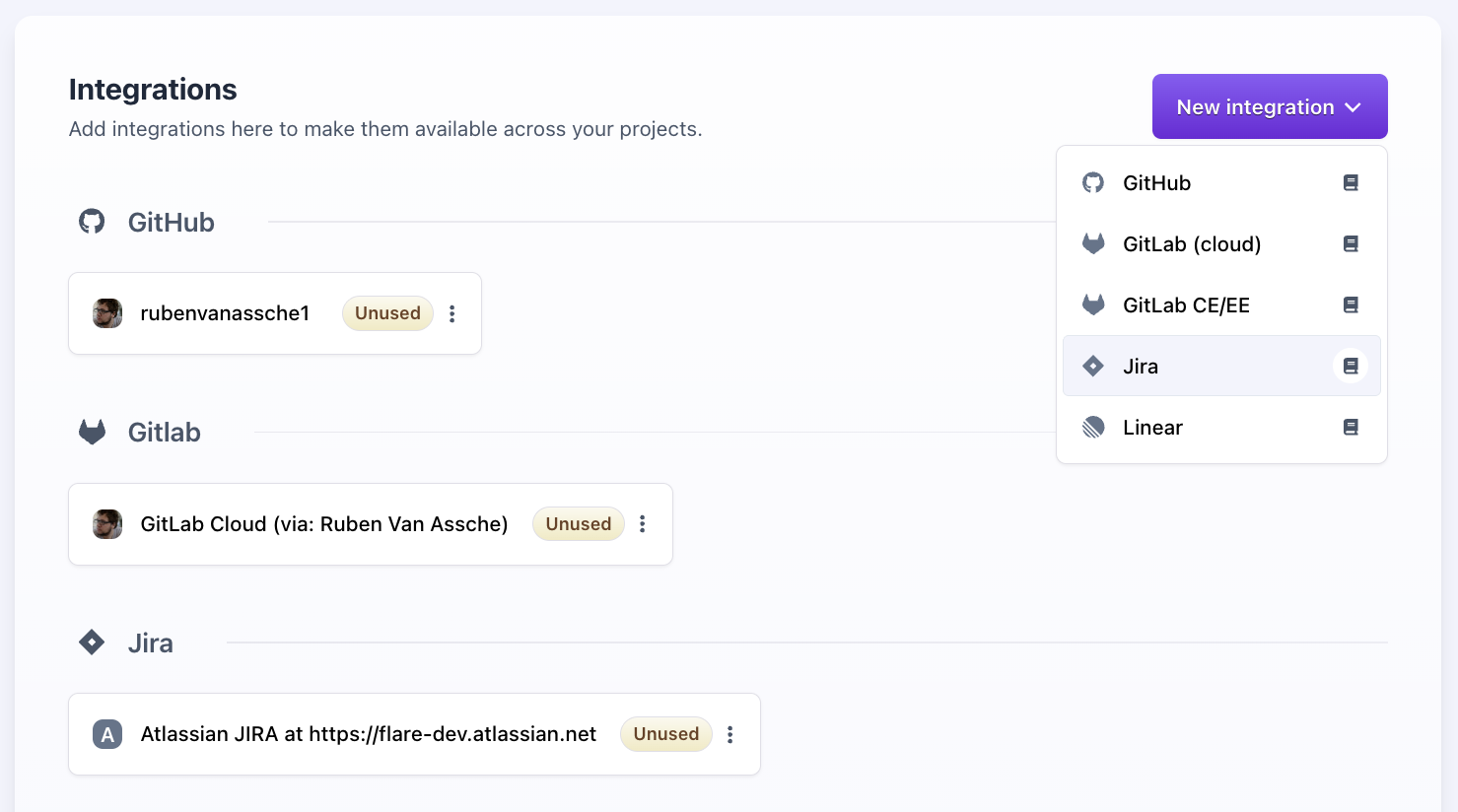
Go to the Integrations page within the team settings. Click on "New Integration" and select Jira.
You will be redirected to the Jira Marketplace. After you've installed the app in your Jira, click on "Get Started", you'll be greeted with the following screen:
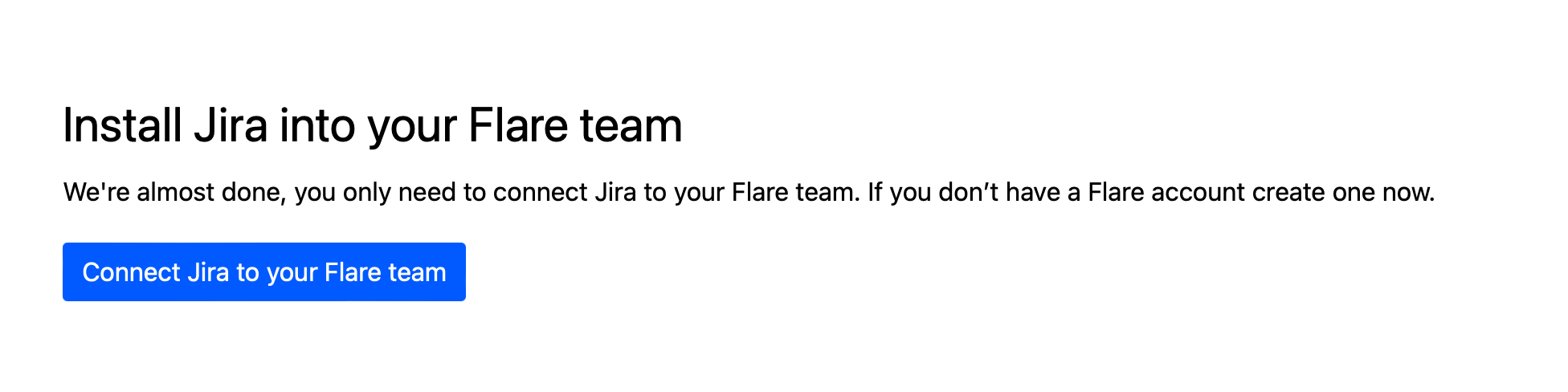
After clicking the "Connect to Jira" button, you'll be redirected back to Flare with the new connection added:

To connect Jira to your projects, go to the integrations page in your project settings. Once there, you can add as many Jira projects to your Flare project as you want. For each project you can also select the issue type that needs to trigger updates in Flare.
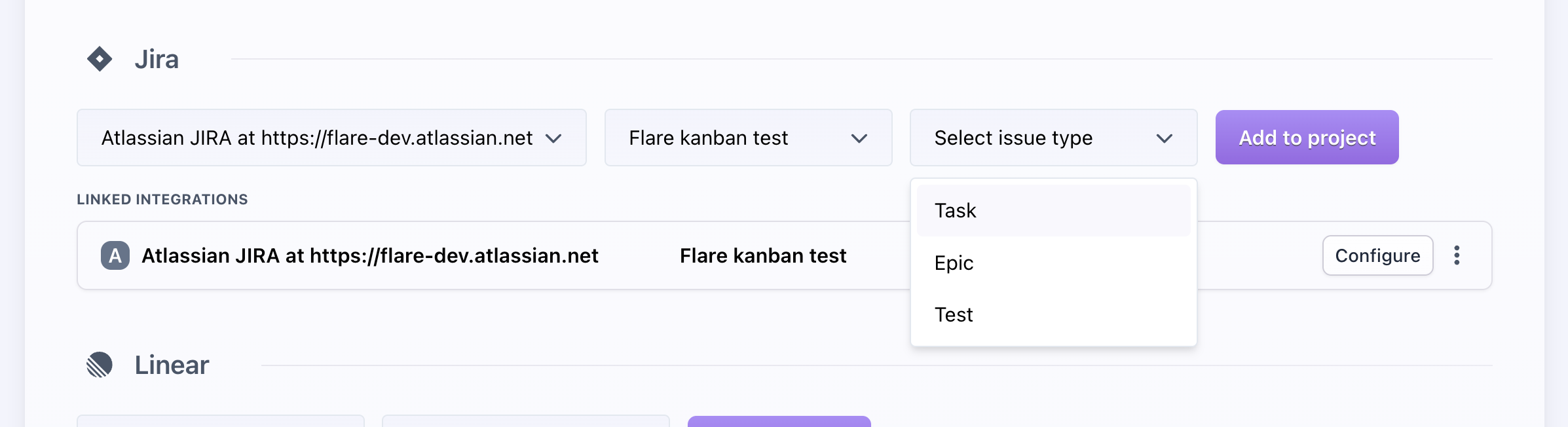
The selected issue type will be used when creating a new issue from Flare.
After linking the project you're able to configure how Flare interacts with the Jira project:
Associating Flare errors with Jira issues
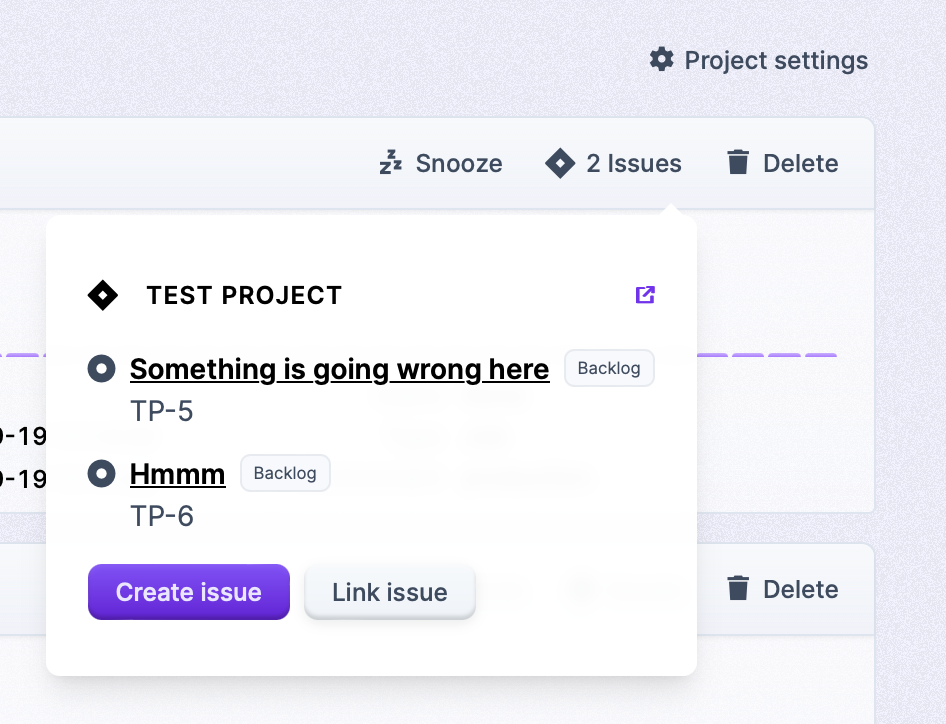
After you've connected a Jira project to a Flare project, you'll see an extra button "Issues" on each error in Flare.
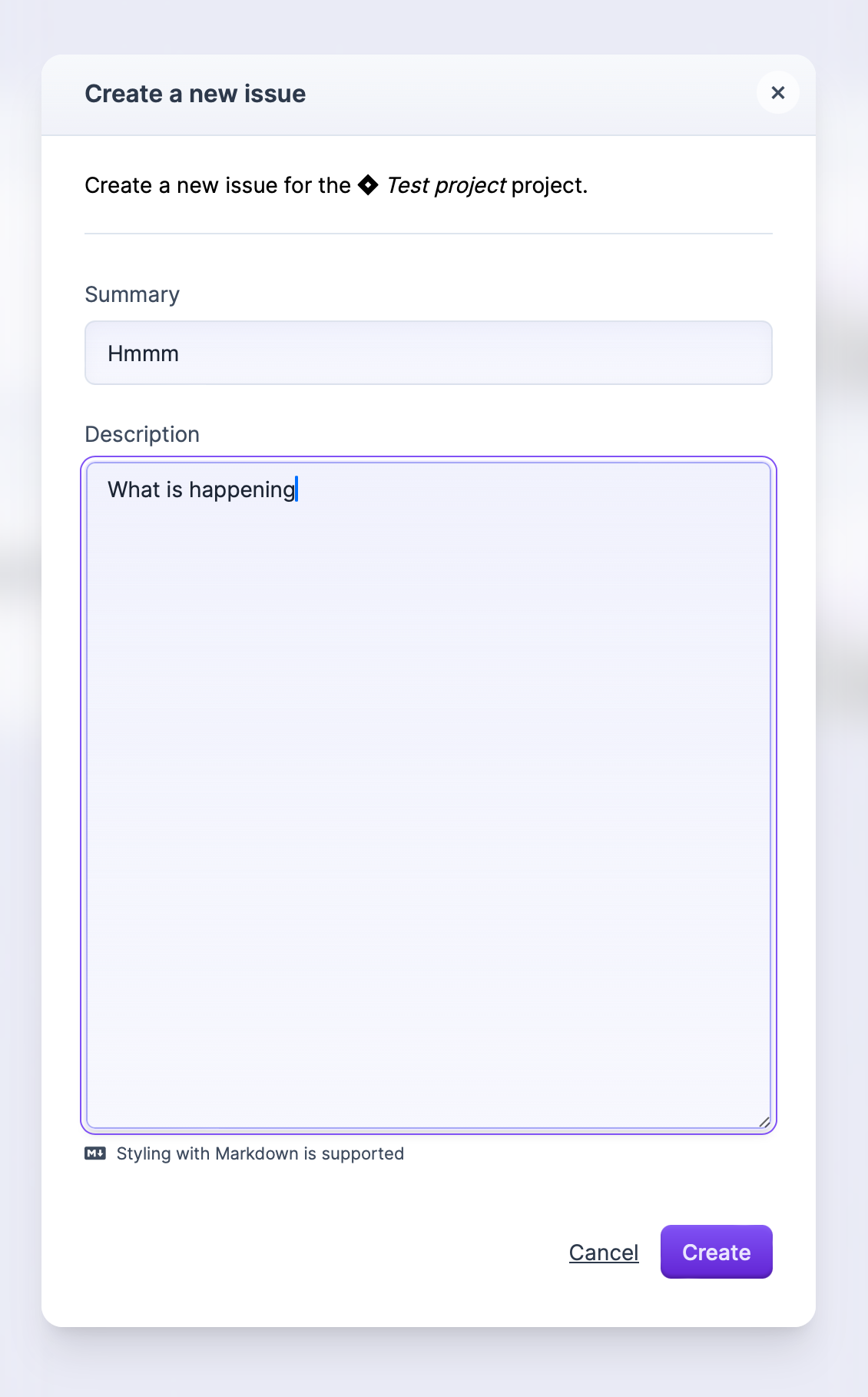
Clicking the "Create Issue" button allows you to create a new Jira issue from Flare:
Issues linked to the error will appear on the issue's overview:
When mentioning a Flare error url in a Jira issue, the issue will be linked to the error if configured within the Jira project settings.
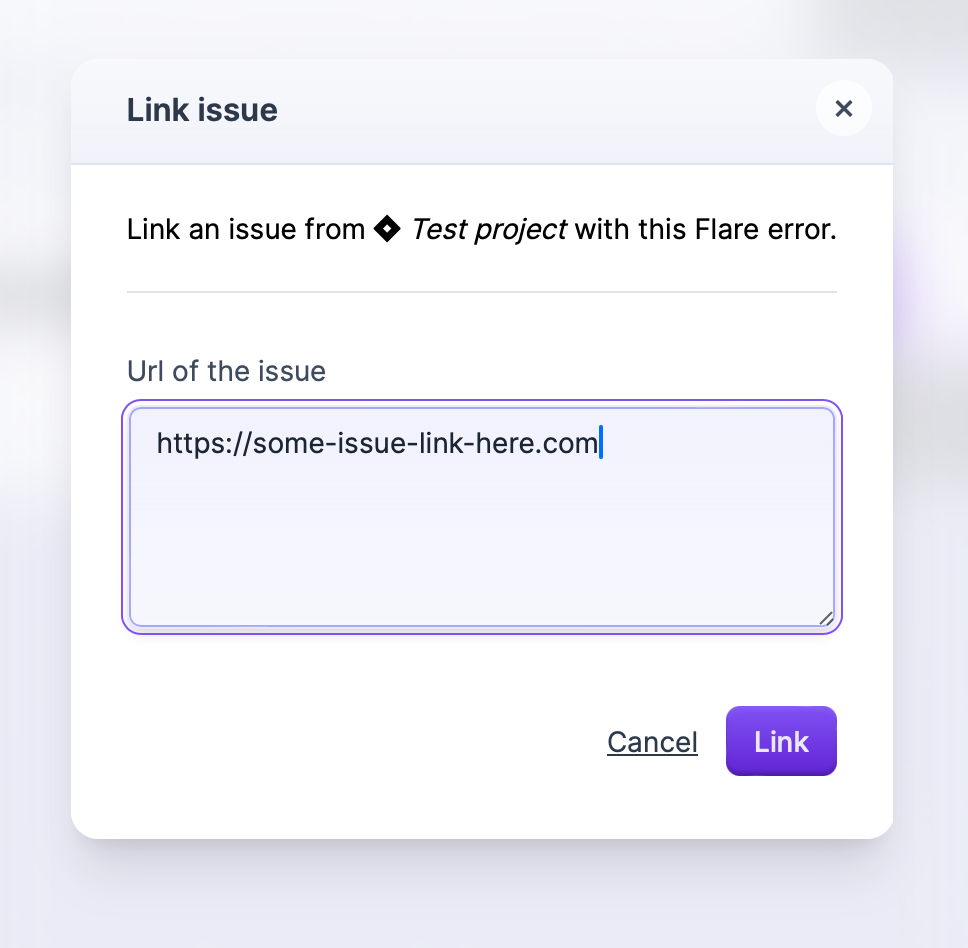
Another option to link issues by clicking on the "Link issue" button on the issues overview of an error. Here you can paste the URL of the Jira issue:
Flare errors in Jira
Within Jira, you can see linked Flare errors on the issue's overview: