Flare
 PHP
 JavaScript
 Protocol
- Error tracking
- Performance monitoring
GitHub integration
If you use GitHub to track issues in your app, you can connect Flare to GitHub.
Our integration allows you to:
- Create a GitHub issue directly on a Flare error.
- Associate a GitHub issue with a Flare error by mentioning a Flare URL in the GitHub issue.
- Automatically resolve / unresolve an error on Flare when you close / reopen the GitHub issue.
- Automatically resolve an error on Flare when you merge a linked GitHub PR.
- Automatically close / reopen a GitHub issue when you resolve / unresolve an error in Flare.
Getting started
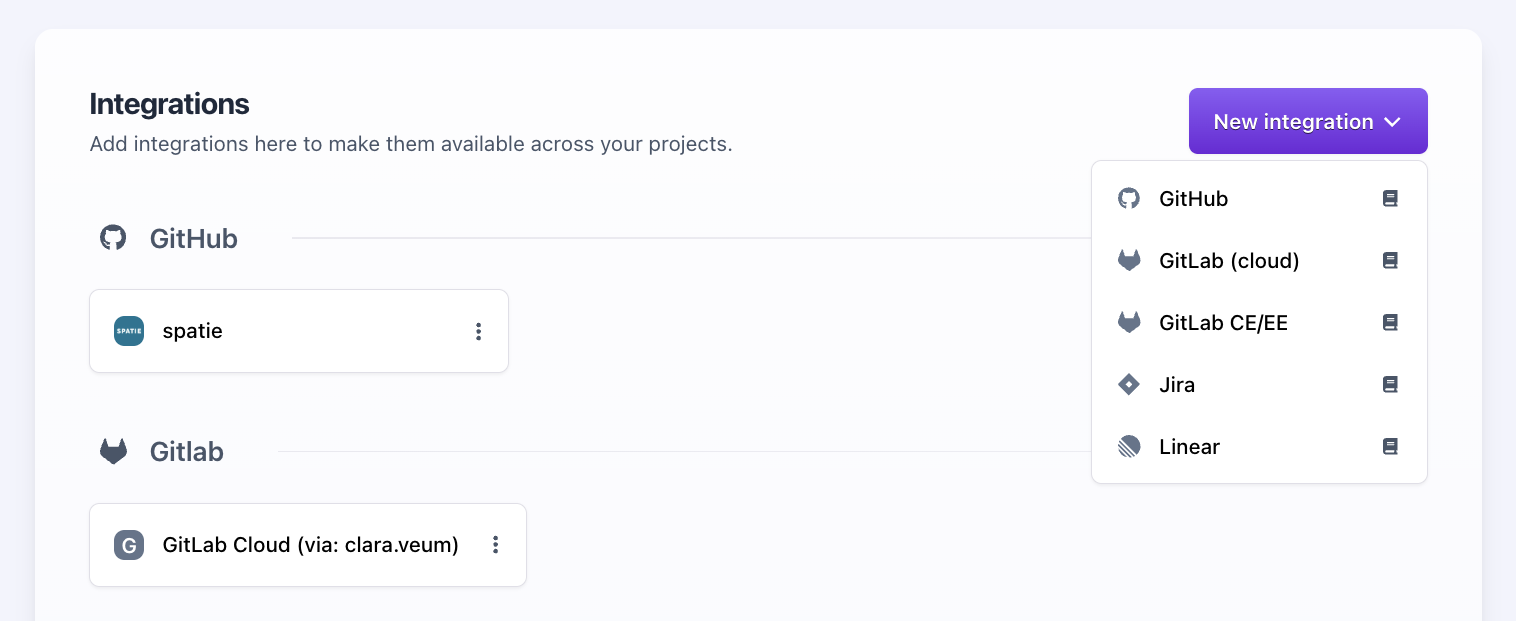
Go to the Integrations page within the team settings. Click on "New integration" and select GitHub.
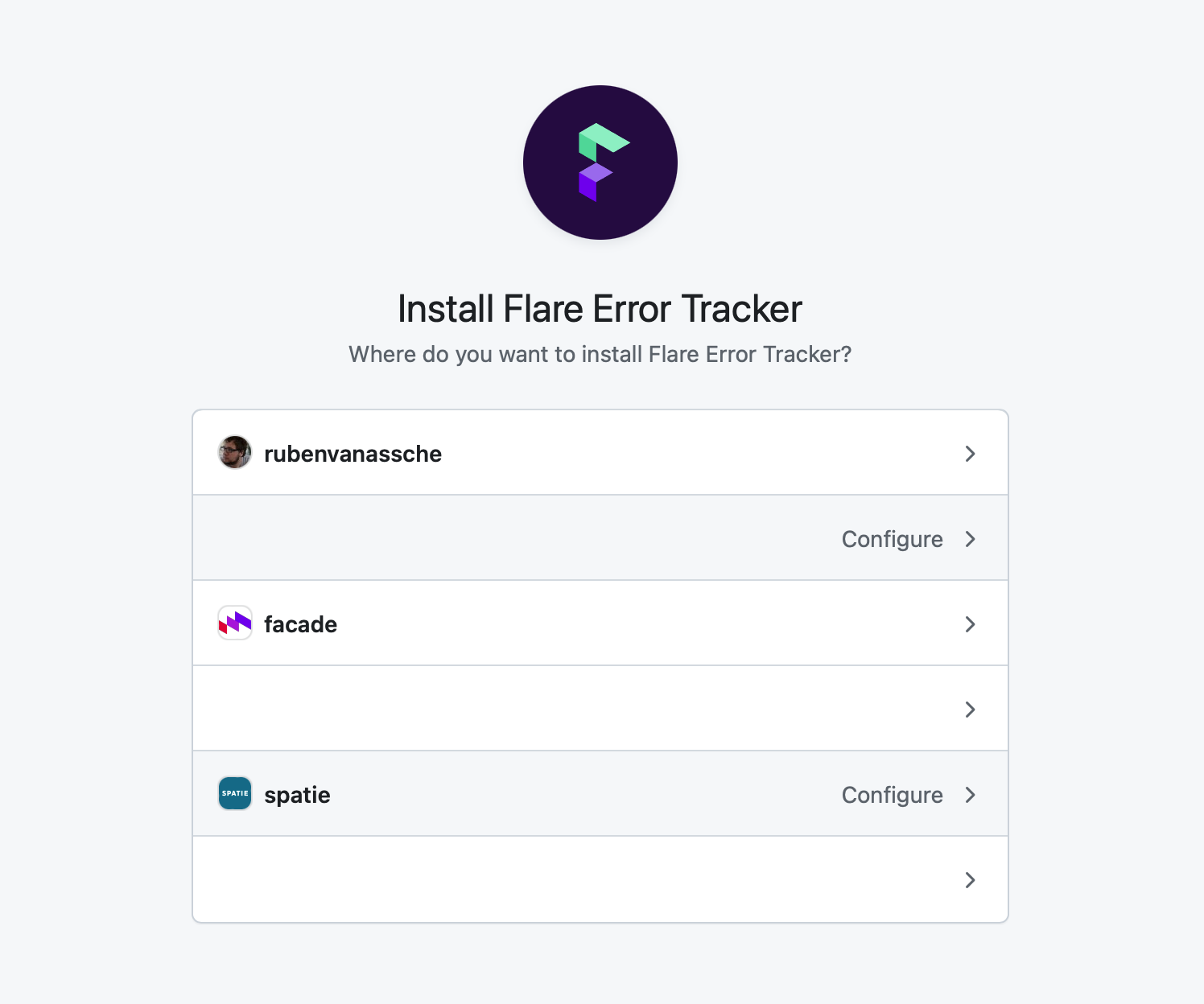
Flare will ask read and write access to your issues and pull requests on your GitHub account.
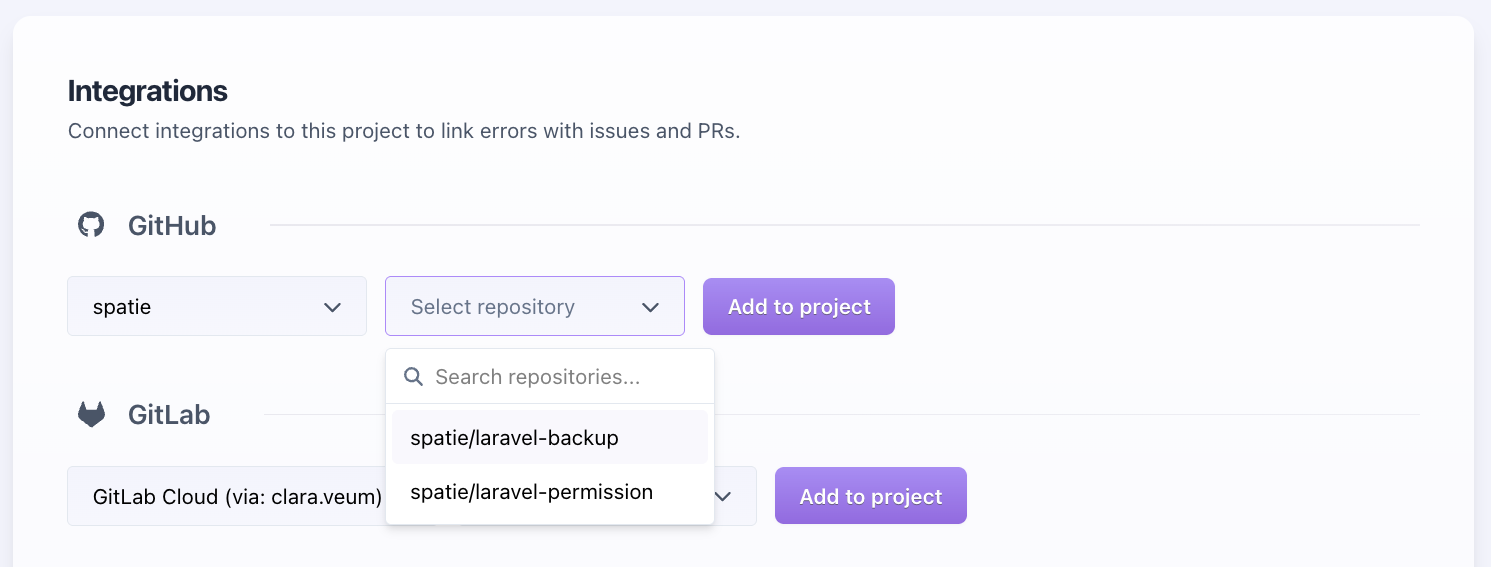
After you've connected Flare to GitHub, you can connect Flare projects with GitHub repositories. In the project settings, open the Integrations page. You can then link the project with one or more GitHub repositories.
After linking the repository you're able to configure how Flare interacts with the GitHub repository.
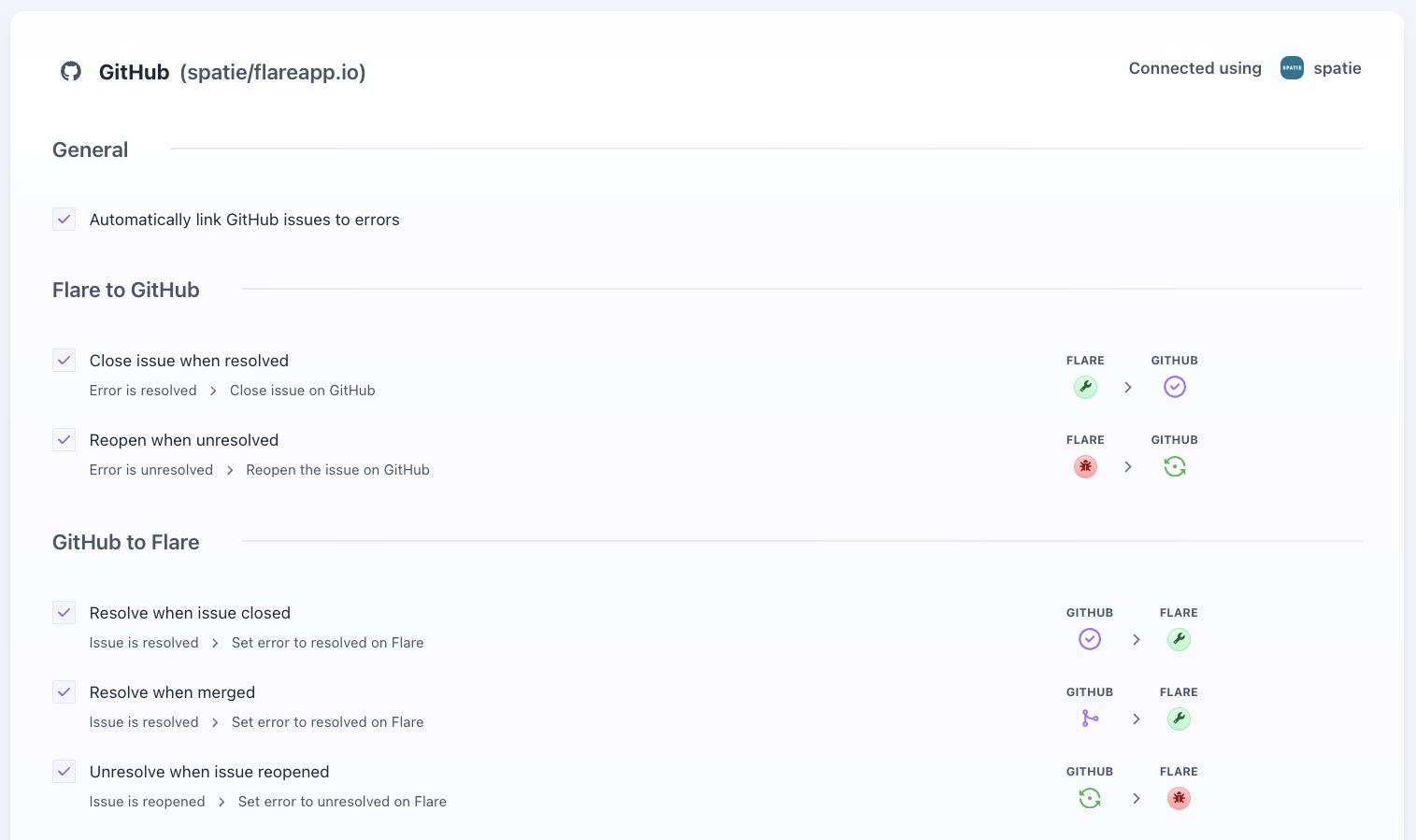
You can turn each of these settings on or off:
- Automatically link GitHub issues to errors: link an issue or PR to an error when it mentions the Flare error URL.
- Close issue when resolved: close the GitHub issue when you resolve the error in Flare.
- Reopen when unresolved: reopen the GitHub issue when you unresolve the error in Flare.
- Resolve when issue closed: resolve the error in Flare when you close the GitHub issue.
- Resolve when merged: resolve the error in Flare when you merge the linked GitHub PR.
- Unresolve when issue reopened: unresolve the error in Flare when you reopen the GitHub issue.
All of these settings are on by default.
New issue defaults
Under "New issue defaults", choose default assignees and labels for issues created from Flare. For example, add a bug label so your team can find reported errors in GitHub. You can change these selections for each issue before creating it.
Labels come from the linked repository. For an organization repository, Flare lists organization members as assignees; for a personal repository, it lists the account owner. You can select multiple assignees.
Associating Flare errors with GitHub issues / PRs
After you've connected a GitHub repo to a Flare project, you'll see an extra button "Create issue" on each error in Flare.
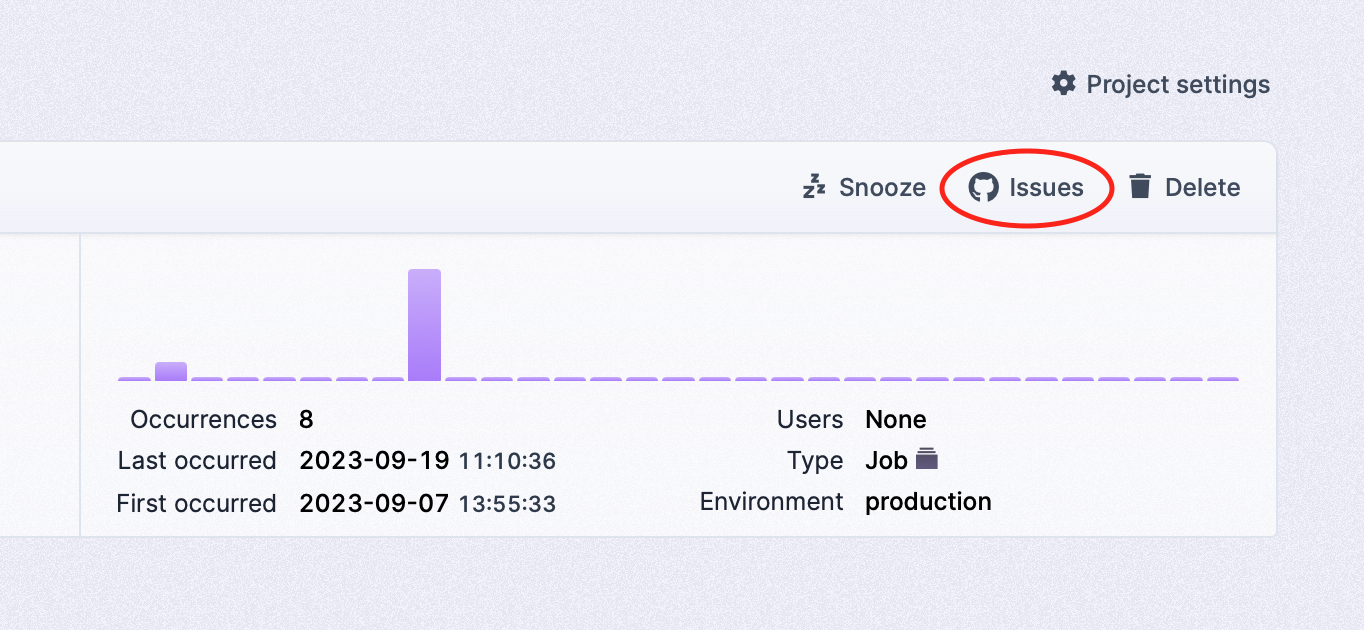
By pressing this button you can either quickly create a GitHub issue from Flare or go to the create new issue page on GitHub.
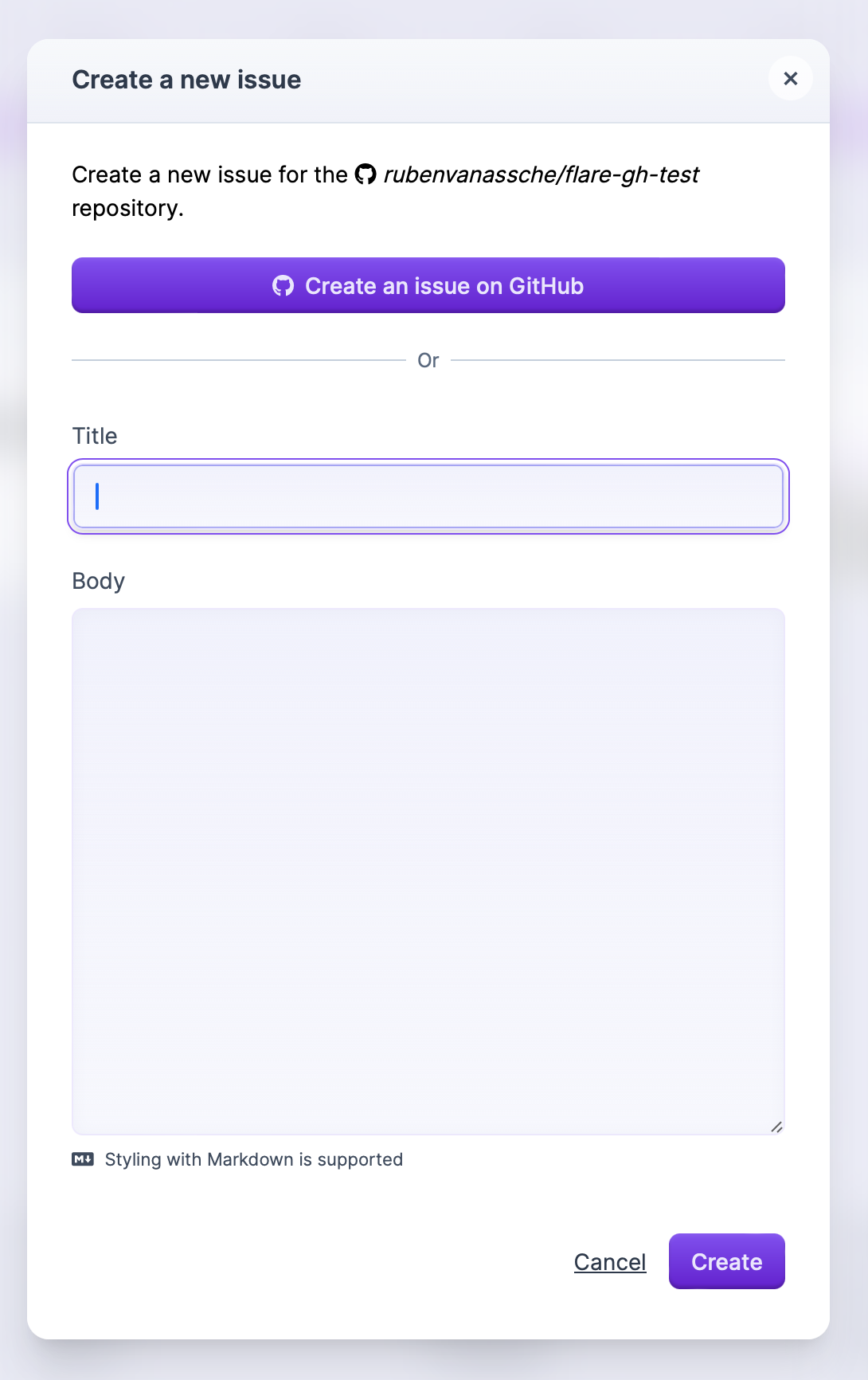
In the Flare creation form, choose assignees and labels, then review the title and body before creating the issue. The form starts with the linked repository's defaults. Creating the issue also links it to the Flare error.
Prefilling an issue
Click "Prefill with AI" to fill the title and body from the error. Review and edit the generated text, including any suggested fix, before creating the issue. The description includes a link back to the error in Flare.
The button is hidden when your team has disabled AI features. If your team has reached its included AI usage or generation fails, Flare fills in the error details instead and shows a notice. You can always write the issue yourself.
This shortcut belongs to the creation form inside Flare. It is separate from opening GitHub's new-issue page.
Flare also supports GitLab, Linear and Jira issue creation and prefill. Those pages explain each provider's available fields and defaults.
Error notification emails also contain a "Create GitHub issue" link. It opens the new issue page on GitHub, with the error message and a summary of the error already filled in.
Linking existing issues and pull requests
If you've already created an issue on GitHub, you can associate the issue with a Flare error by mentioning the Flare error URL in the issue description or any of the comments. This will also associate the GitHub issue with the Flare error.
When you return to Flare, you can see that the UI now shows that this error is now associated with one GitHub issue. When you click that link, you'll see a card that contains a link to the issue, and you can optionally couple the same error to another issue.
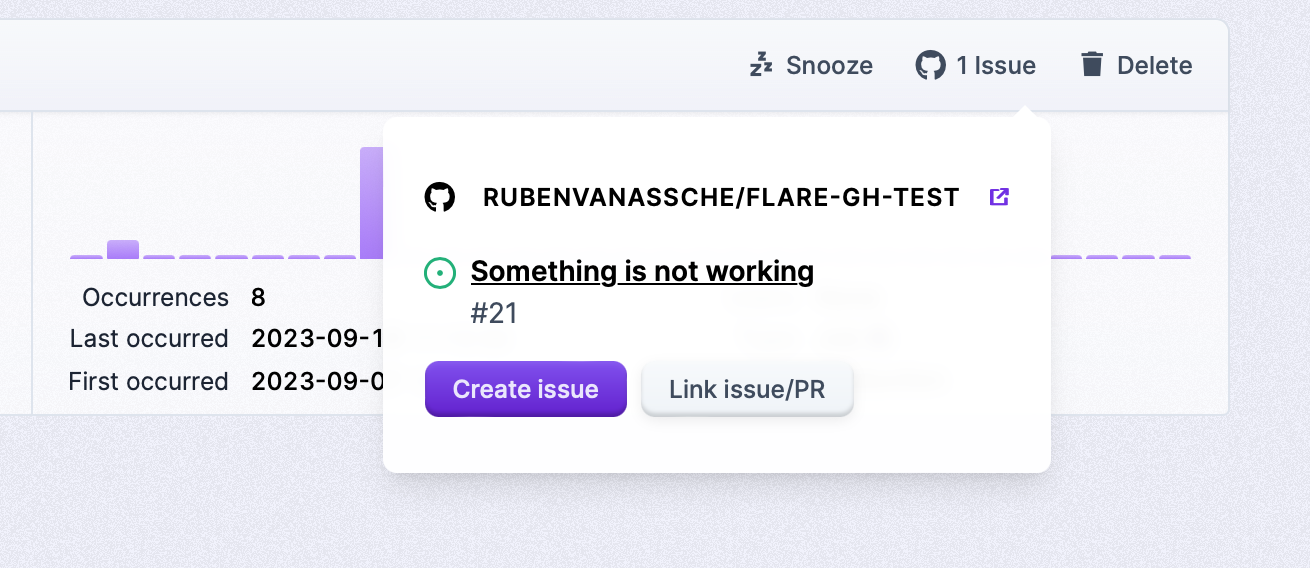
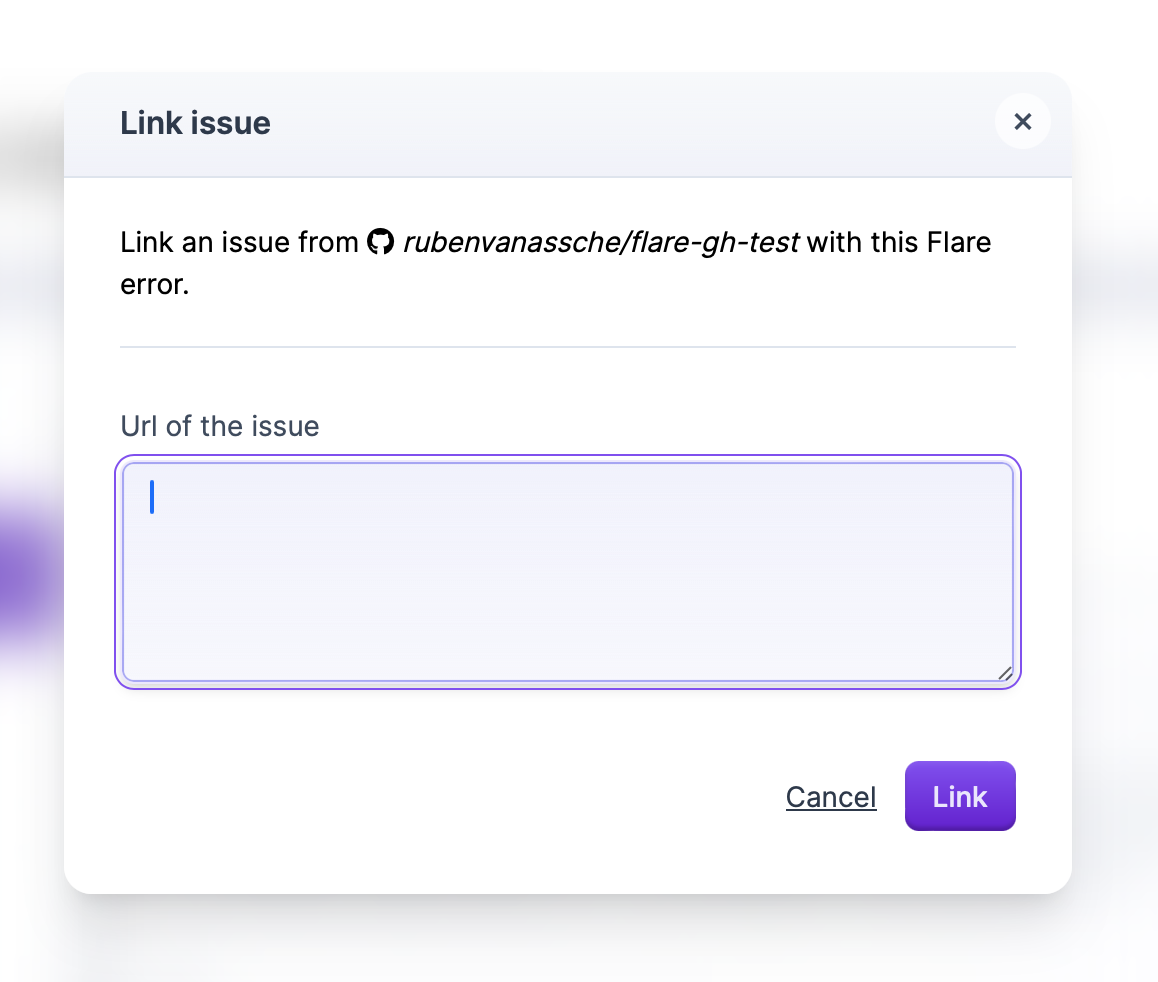
Another option is to click on the "Link issue/pr" button on the issues overview of an error. Here you can paste the URL of the GitHub issue or PR.